ASCP
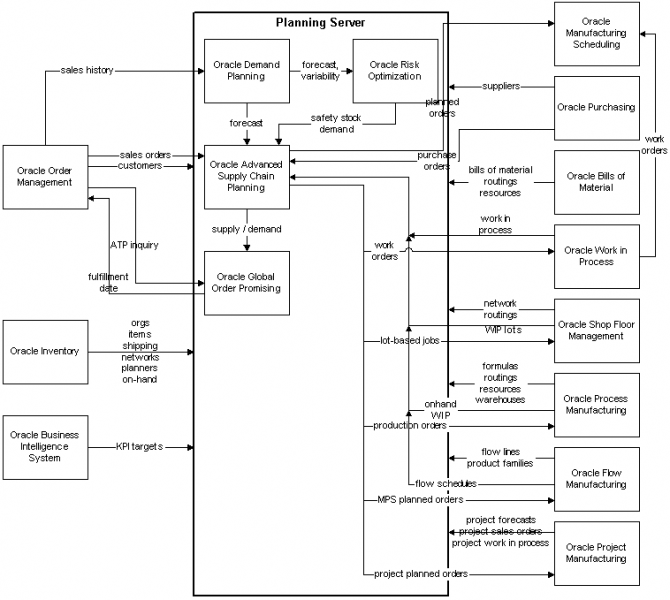
Oracle Advanced Supply Chain Planning (ASCP) is a comprehensive, Internet-based planning solution that decides when and where supplies (for example, inventory, purchase orders and work orders) should be deployed within an extended supply chain.
The key capabilities of Oracle ASCP are
Multiorganization Planning
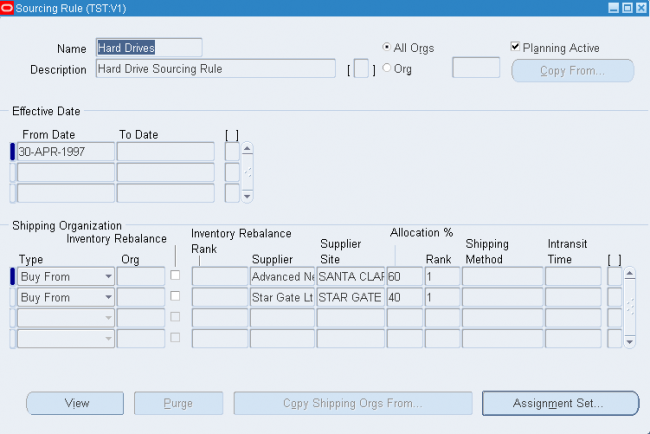
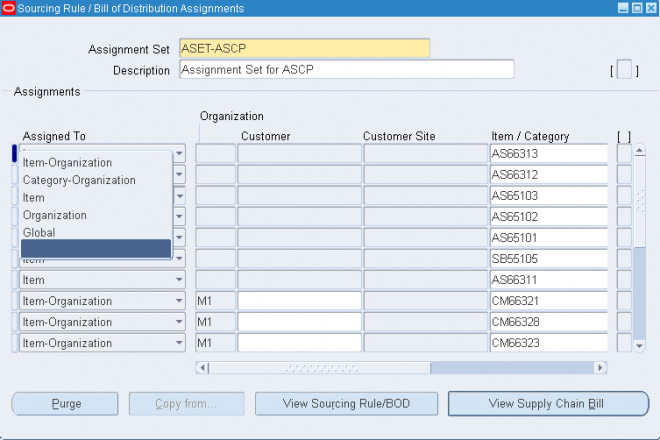
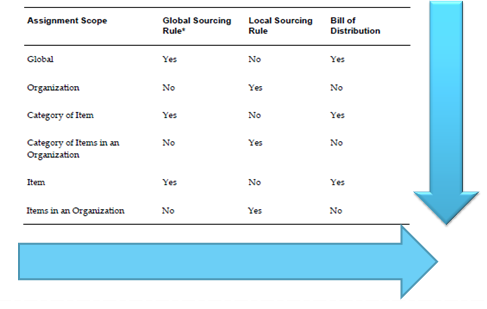
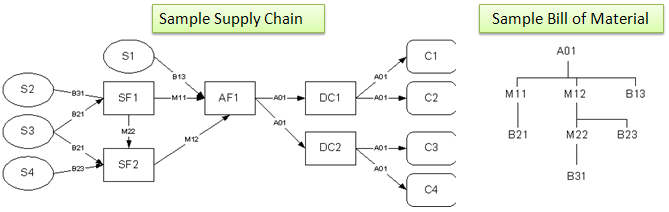
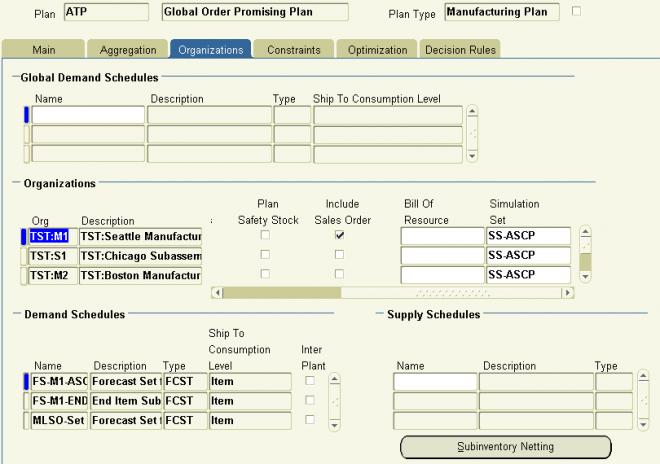
ASCP and SCP allow you to model complex supply chains and provide a unified plan for the entire supply chain. Your model can include customer preferences (for example, which organizations can supply which customers), multiple manufacturing and distribution organizations within your enterprise, and your suppliers. In simple cases, you might be able to model your supply chain using item and organization attributes. For more elaborate supply chains, you can define sourcing rules and bills of distribution and apply different sets of assignments of those rules.
Holistic Planning
The term holistic planning was coined by Oracle to suggest that one plan could meet all the needs typically addressed by multiple plans in more traditional planning scenarios. Holistic planning eliminates or reduces the need to keep multiple plans in synch. Specifically, holistic planning accommodates three dimensions of the planning problem:
- One plan can accommodate the entire planning horizon, with the appropriate level of granularity at different points along the horizon.
- One plan can accommodate the entire supply chain, from your customers, through the distribution and manufacturing organizations within your enterprise, and down to your suppliers.
- One plan can accommodate all manufacturing methods: discrete, repetitive, process, flow, and project- (or contract-) based manufacturing.
Constraints
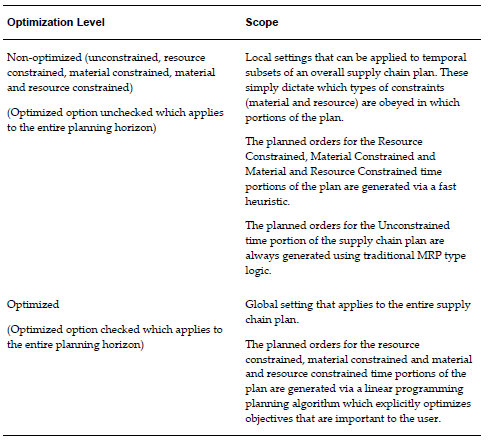
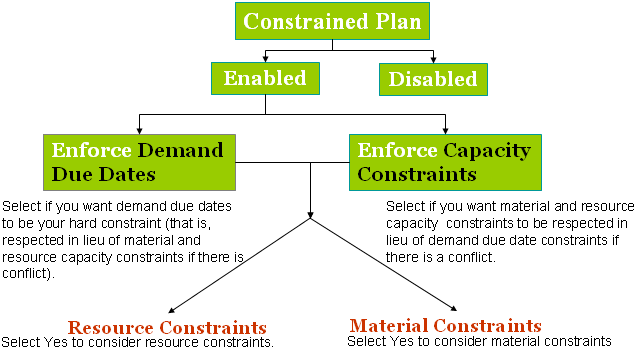
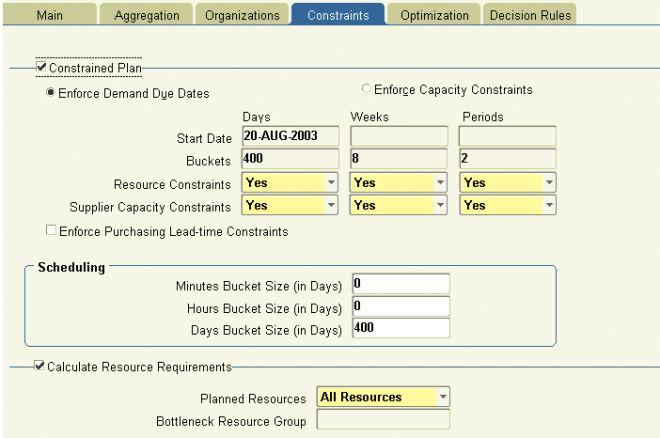
Unlike Oracle MRP planning, ASCP can respect various constraints on your production and distribution capabilities. This capability, sometimes called finite planning or constrained planning, enables you to generate a plan respecting material constraints, capacity constraints (including both manufacturing resource and transportation capacity), or both. You can plan for detailed or aggregate resources, and you can use item routings or bills of resource to control the granularity of the planning process.
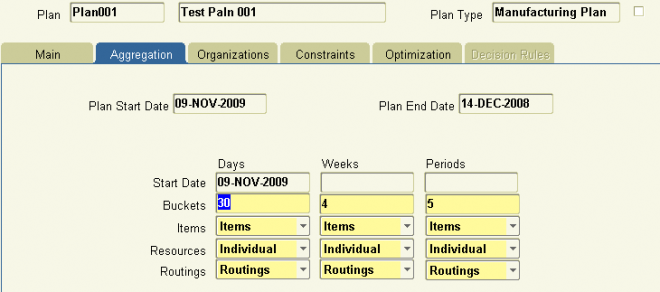
You can enforce constraints selectively across the planning horizon. It may be important, for example, to recognize material and capacity constraints in the near term to avoid creating a plan that you can’t execute. But at the far end of the horizon, it may be more important to generate an unconstrained plan to determine how much additional capacity you might need to meet the anticipated demand.
Constraint-based planning is a prerequisite for optimized planning—if there are no constraints, the assumption is that you can do anything; there’s nothing to optimize.
Optimization
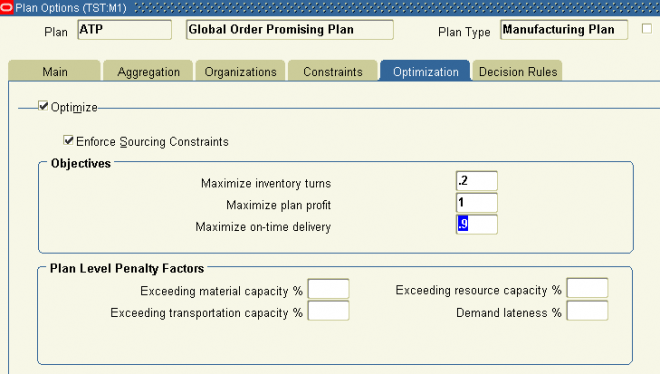
ASCP includes the option to generate an optimized plan. In an optimized plan, the planning process determines the relative cost of the different options available to it and chooses the “best” alternative based on those costs. Some of those costs are naturally present in your ERP data, such as the cost of using a substitute item or an alternate resource. Other costs are computed in planning by applying penalty factors to different events. For example, you might assign a penalty factor of 50 percent to exceeding resource capacity (reflecting that you would pay time-and-a-half if you had to work overtime); you might assign another penalty factor to satisfying a late demand, to artificially add cost to late production. In addition, optimization is influenced by the weight you give to each of three explicit planning objectives: Maximize Plan Profit, Maximize On-Time Delivery, and Maximize Inventory Turns.
Integrated Performance Management
ASCP incorporates performance management features from Oracle’s Business Intelligence System (BIS). The Planner Workbench for ASCP displays four Key Performance Indicators (KPIs) for each plan:
- Inventory Turns The inventory turns you could achieve if you executed the plan as suggested
- On-Time Delivery The percentage of ontime delivery, to customer orders or to internal orders, that the plan projects
- Margin Percentage The anticipated margin (profit) that would be generated by following the suggestions of the plan
- Resource Utilization The utilization of resources projected by the plan
Release 11i.5 ASCP provides additional KPIs; right-click the workbench to select the following indicators:
- Margin The margin amount (i.e., currency) that would be generated by following the plan suggestions
- Cost Breakdown A comparison of four separate costs—Production Cost, Inventory Carrying Cost, Penalty Cost, and Purchasing Cost
Plan Types
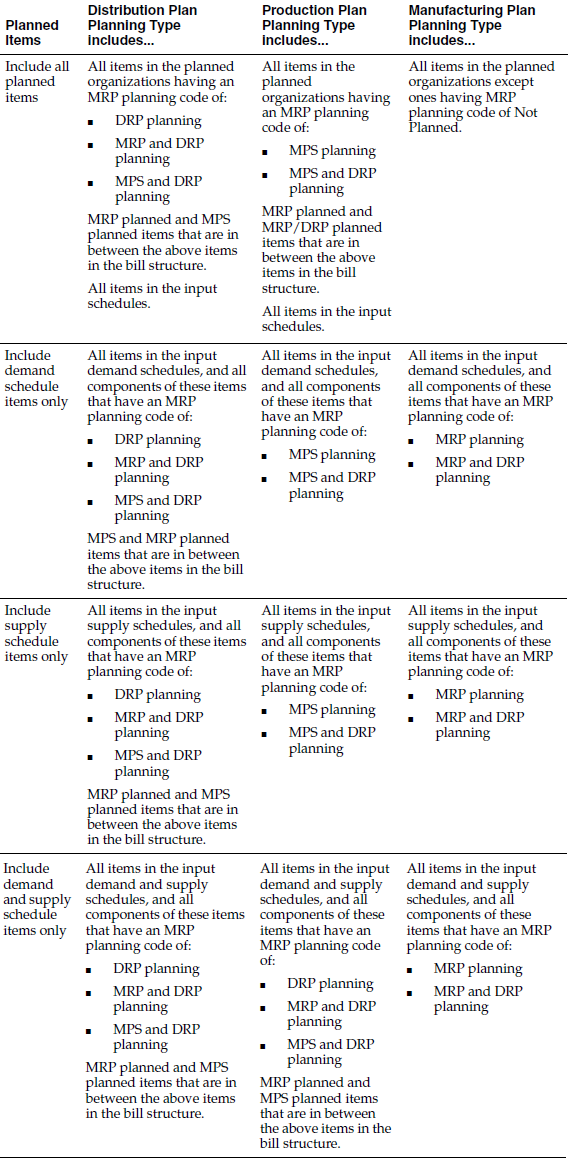
ASCP uses basically the same plan types as traditional MRP, but uses slightly different names:
- Distribution Plan equates to a DRP, or Distribution Requirements Plan.
- Manufacturing Plan equates to an MRP, or Material Requirements Plan.
- Production Plan equates to a Master Production Schedule, although there are significant differences between the earlier MPS and a Production Plan defined in ASCP.
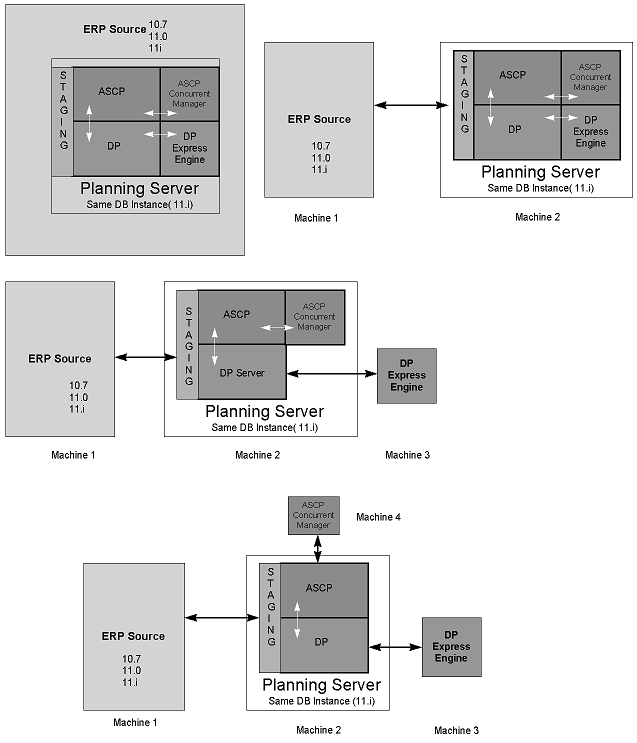
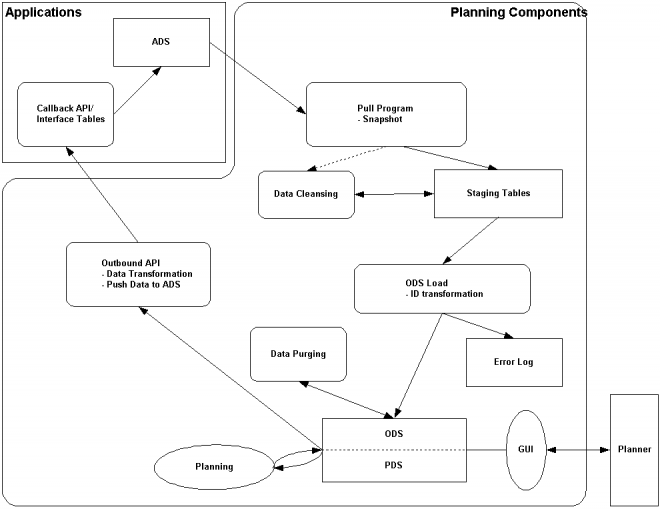
ASCP is able to run on a separate server from your ERP system. This architecture eliminates any performance degradation on your transactions systems when a plan is running, and it enables you to run plans more often and more quickly than with traditional planning systems. (If you will run your plans overnight or at nonpeak hours, you can use the same server for both ASCP and ERP.)
The separate-server architecture also facilitates planning for multiple ERP systems; you can define multiple ERP instances to plan, collect their data to the planning server, and then run one single, consolidated plan with the aggregate data.
Because planning is designed to run on a separate server from ERP, you must explicitly publish the planning data back to the source instance to perform certain activities in your ERP system. The Push Plan Information concurrent program provides this function. For example, if you want to create flow schedules from an ASCP plan, you must run this program.
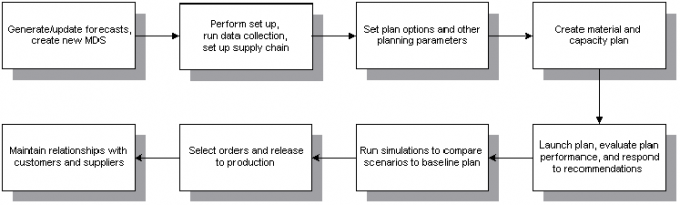
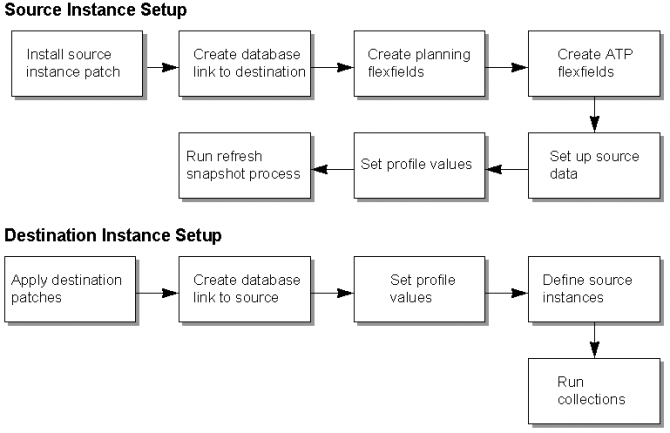
Whether you run ASCP on a separate machine, a single machine, or the same database instance as your ERP system, the process of setting up and running ASCP plans is unchanged—you must still define the source instances that planning will use and you must still collect data from those instances to the planning server.