Cost Management
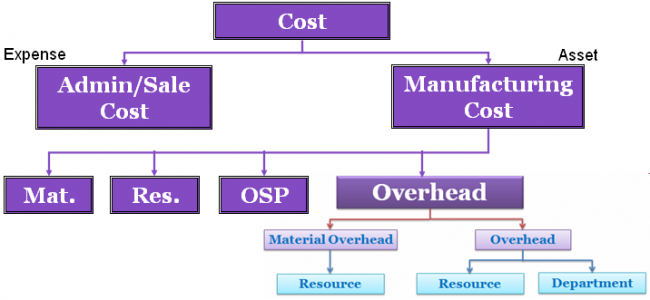
Cost management is a term that has been popularized by CAM-I (Consortium For Advanced Manufacturing - International). Cost management is said to be a more comprehensive concept than cost accounting in that the emphasis is on managing and reducing costs rather than reporting costs. In other words, it is a long run proactive approach rather than a short run reactive approach. For example, a great deal of attention is given to reducing costs at the design stage of a product's life cycle rather than simply attempting to measure and control cost during the production stage.
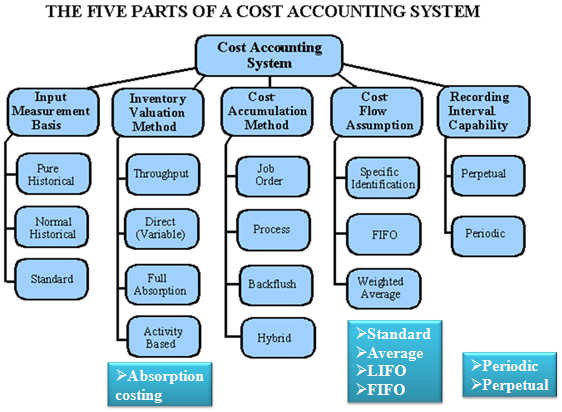
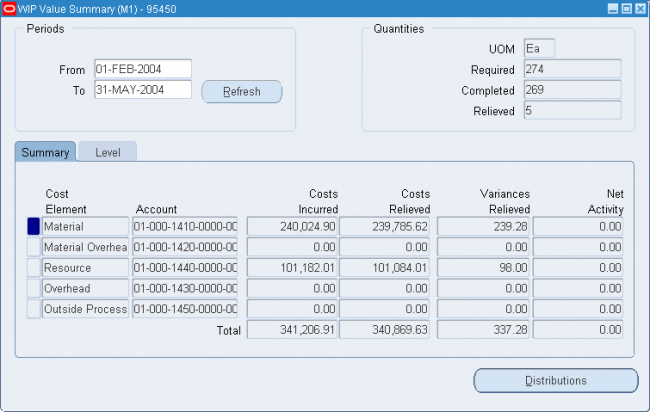
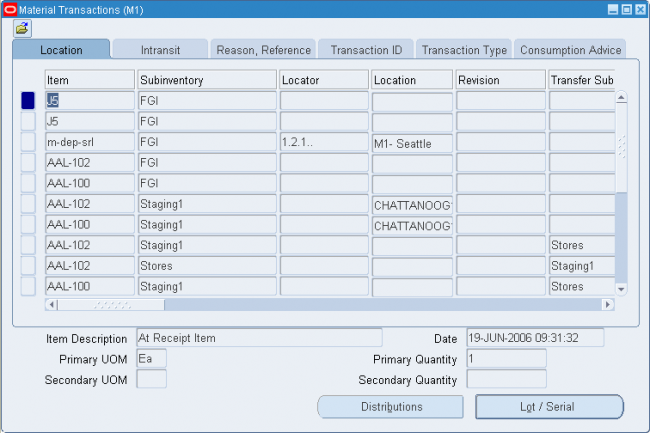
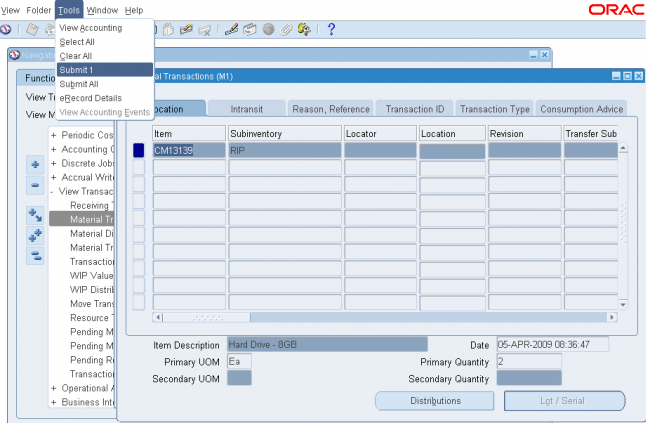
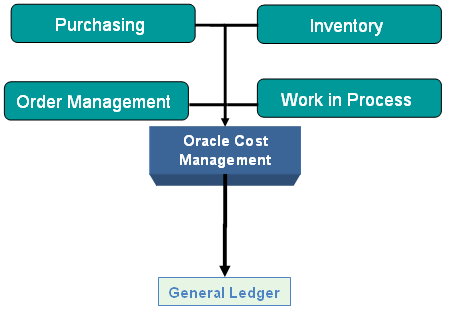
Oracle Cost Management is a full absorption, perpetual, and periodic cost system for purchasing, inventory, work in process, and order management transactions. Cost Management supports multiple cost elements, costed transactions, comprehensive valuation and variance reporting, and thorough integration with Oracle Financials.
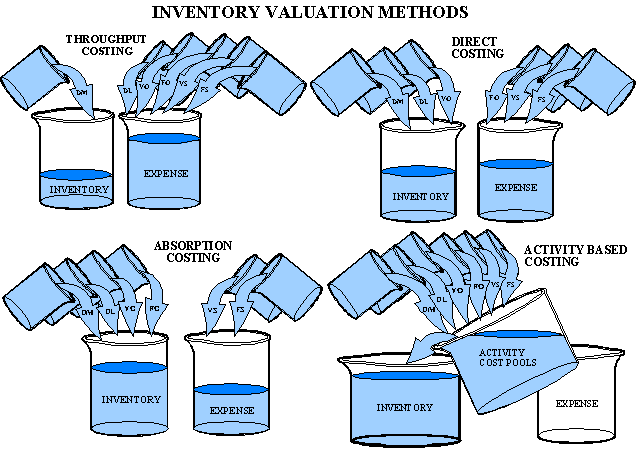
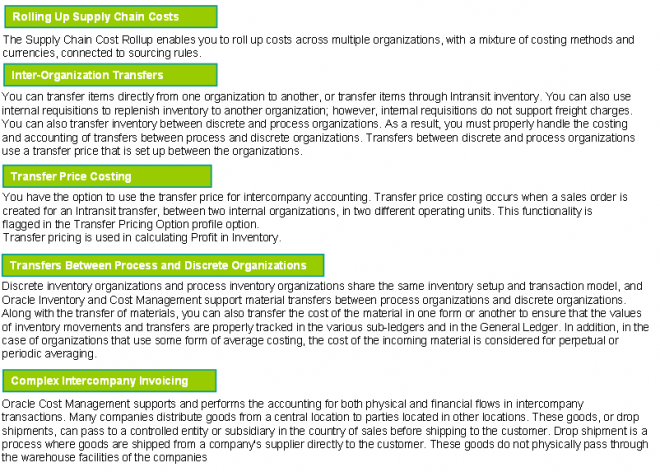
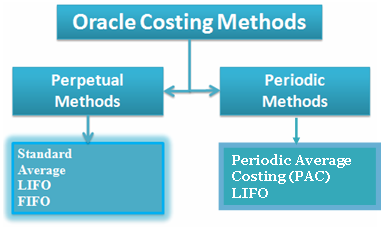
The four inventory valuation methods that appear in fig. shown @
http://www.oracleug.com/user-guide/cost-management/basics-cost-management
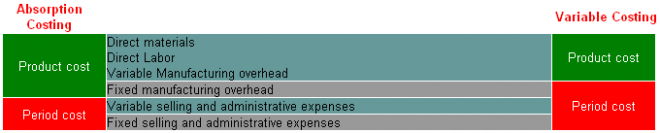
are arranged in the order of the amount of cost that is traced to the inventory. The throughput method involves tracing the least amount of cost to the inventory, while the activity based method includes tracing the greatest amount of costs to the inventory. In direct (or variable) costing, a greater amount of cost is traced than in the throughput method, but a lesser amount than in the full absorption method. Direct costing and full absorption costing are the traditional methods, while the throughput and activity based methods are relatively new. These inventory valuation methods are very important because they control the manner in which net income is determined. Oracle provides full absorption method.
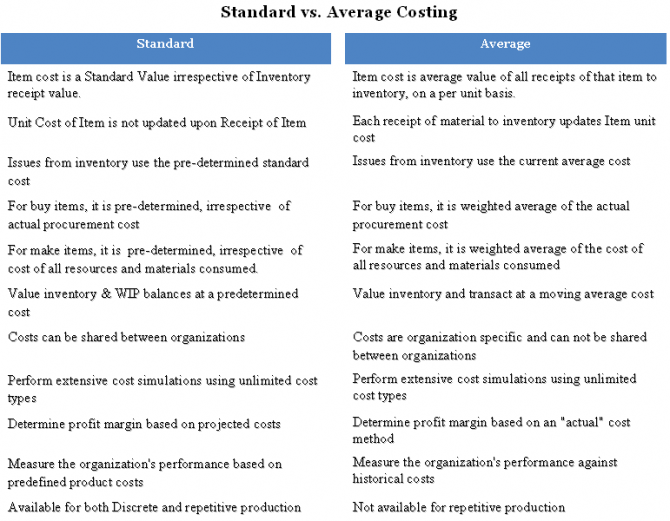
Cost Management supports four perpetual costing methods: Standard Costing, Average Costing, FIFO Costing, and LIFO Costing. You can use the Average Costing method for one organization and the Standard Costing method for another organization.
Oracle Cost Management does not support costing for process inventory organizations.
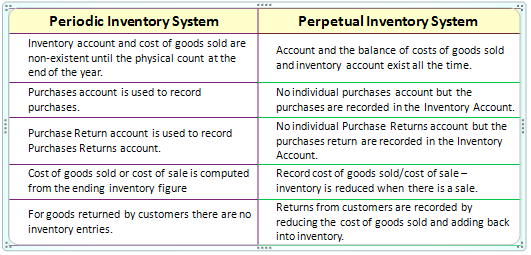
PERIODIC VS. PERPETUAL INVENTORY SYSTEMS
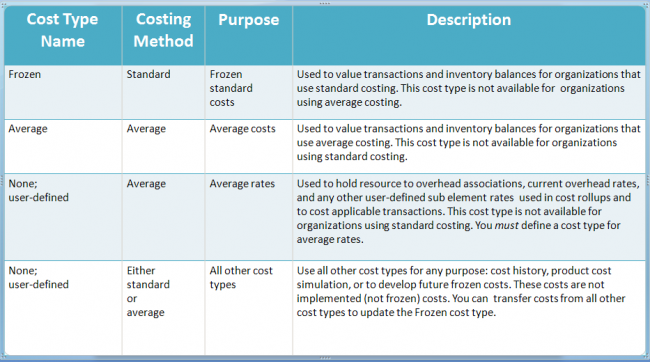
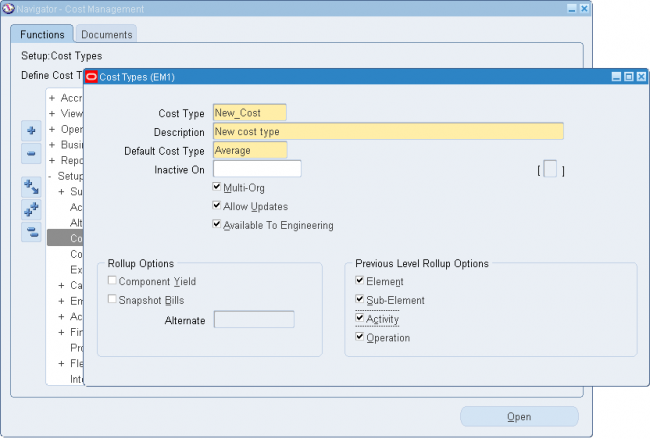
Cost Type
Cost are of 2 Types:
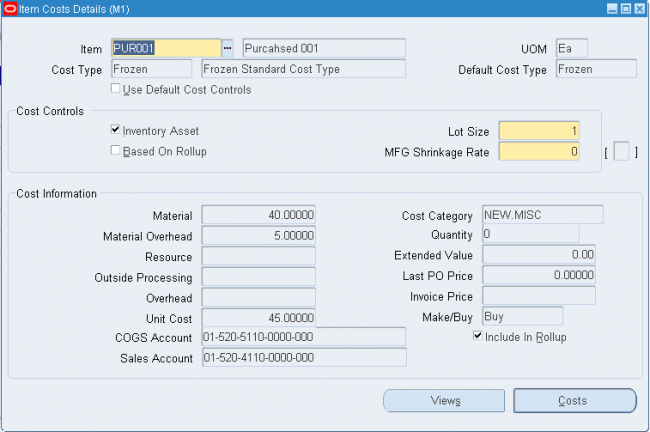
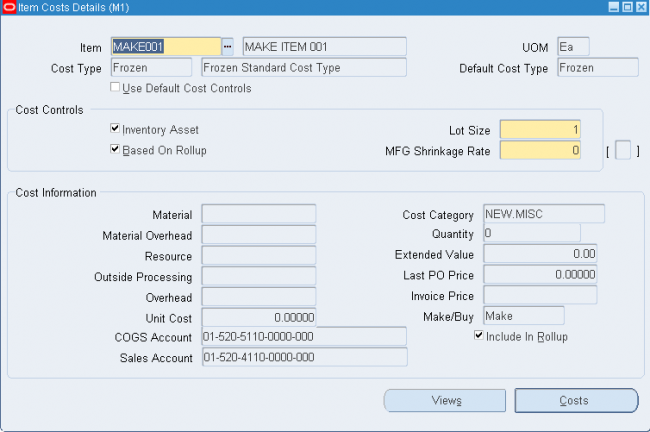
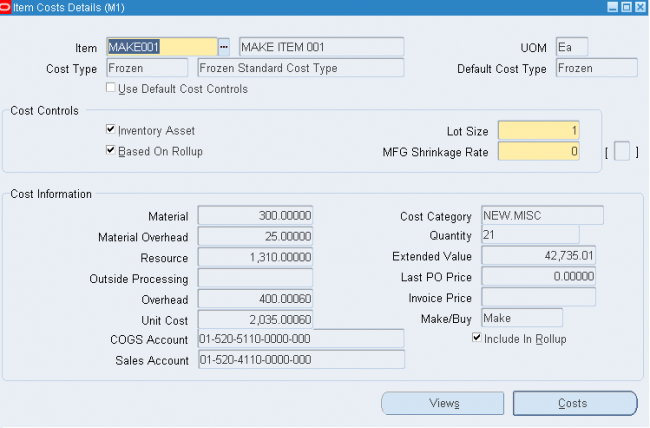
Frozen Cost: Frozen Cost is the cost at which inventory transactions are costed
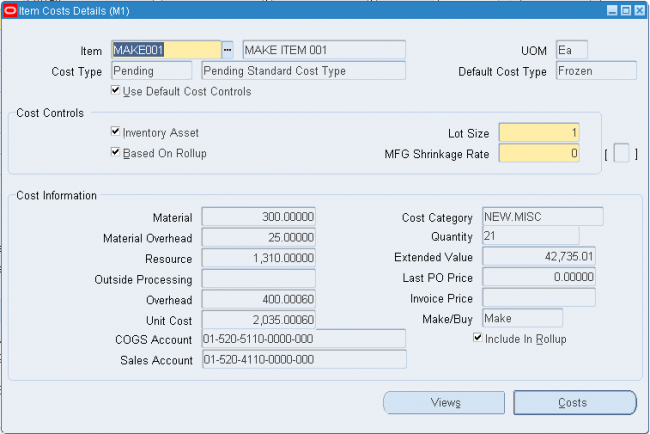
Simulated Cost: Simulated Costs are used to simulate cost scenarios to arrive at the best estimate of standard cost Oracle provides a seeded simulated cost ‘Pending’. Unlimited number of simulated cost types can be defined in the system
Cost Structure
A cost structure is the collection of definitions and methods used to cost inventory, bills of material, and work in process. The cost structure is composed of:
- Organizations
- Cost organizations and shared costs
- General Ledger accounts
- Cost elements
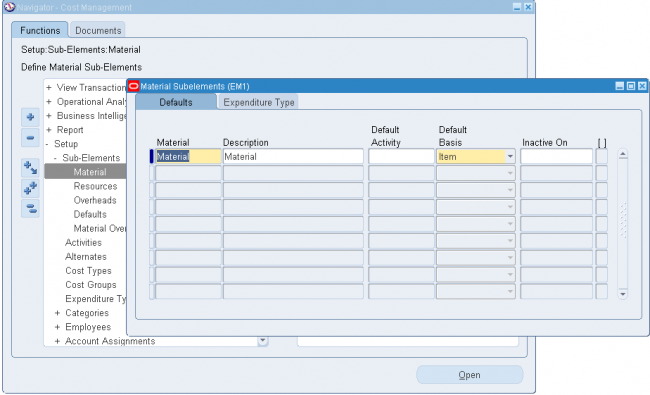
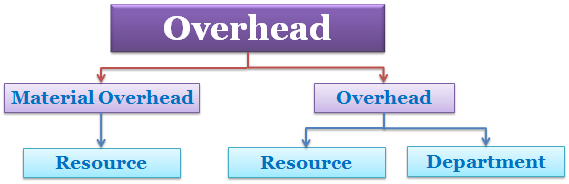
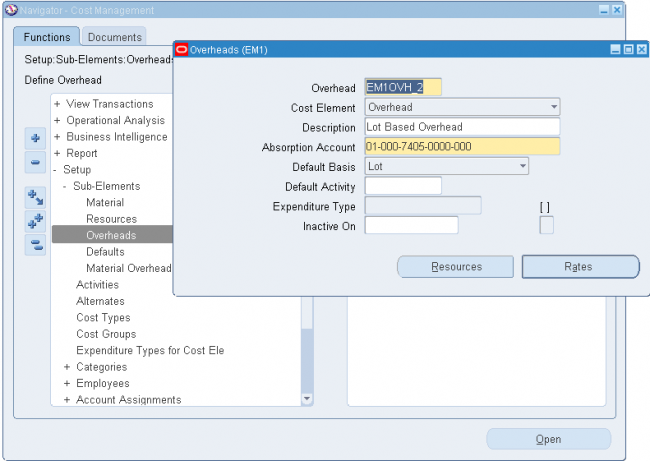
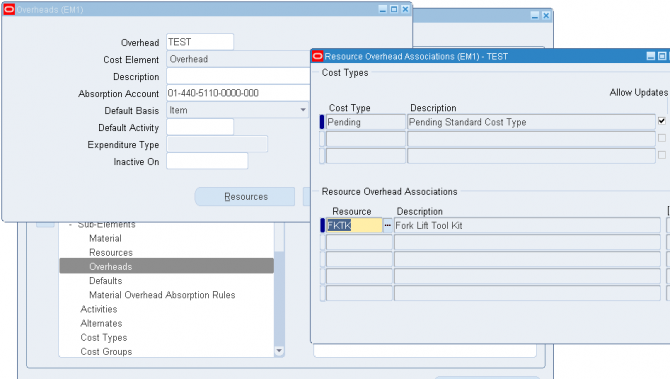
- Subelements
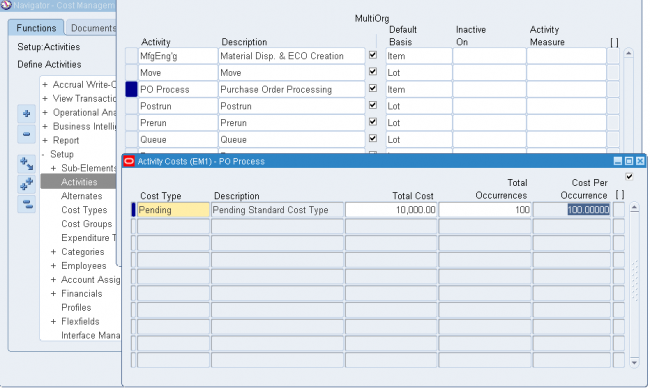
- Activities
- Basis types