Basics of Accoutning
Financial statements (or financial reports) are formal records of a business' financial activities. it provide an overview of a business' financial condition in both short and long term. There are four basic financial statements
1. Balance sheet: also referred to as statement of financial position or condition, reports on a company's assets, liabilities, and net equity as of a given point in time.The balance sheet is the snapshot of the assets and liabilities the company has acquired since the first day of business.
See example of a balance sheet @
http://investor.google.com/releases/2009Q2_google_earnings.html
2. Income statement: also referred to as Profit and Loss statement (or a "P&L"), reports on a company's income, expenses, and profits over a period of time. in simple words its a summation of the income and expenses from the first day of this accounting period (probably from the beginning of this fiscal year).
3. Statement of cash flows: reports on a company's cash flow activities, particularly its operating, investing and financing activities.
4. Statement of retained earnings: explains the changes in a company's retained earnings over the reporting period.
In British English, including United Kingdom company law, financial statements are often referred to as accounts, although the term financial statements is also used, particularly by accountants.
In order understand the financial statements one should understand the below terms
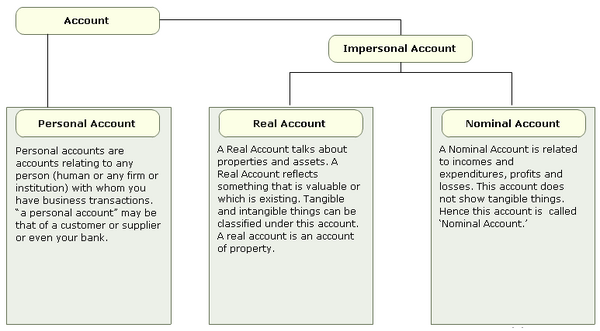
Standrad Oracel has following 5 accoutning types
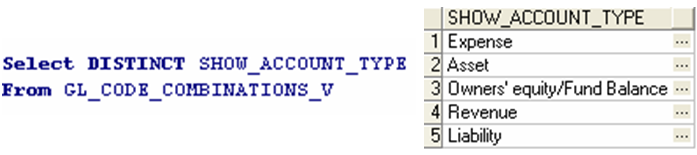
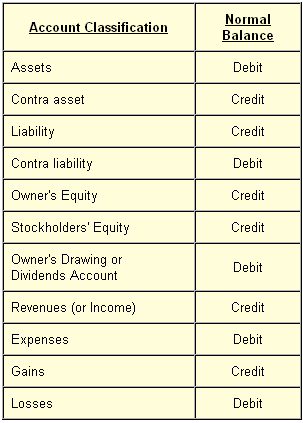
Asset/Liability, Expense/Income are the four baisc type of accounts.
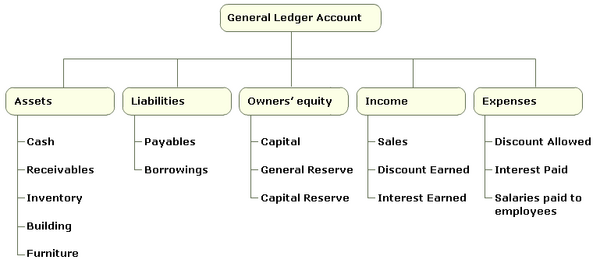
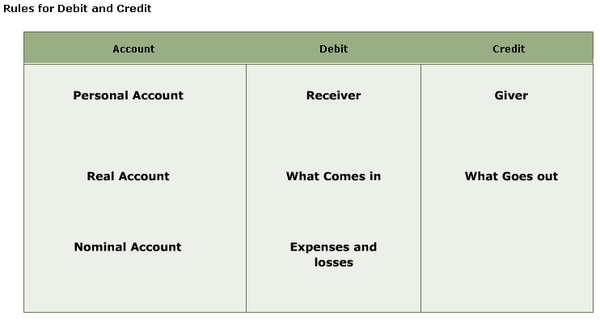
Debit/Credit:
I find the best way to understand debits and credits is to identify two components of each transaction:
1. what did you get?
2. where did it come from?

For instance, let's imagine that you purchase a computer with your credit card. Since the computer is what you received it's going to result in a debit to the asset account for your computer. The credit will be applied to the credit card liability account for the same amount.
What is often confusing is that the notion of debit and credit will depend on the perspective of the person preparing the accounts, even though they may be essentially the same account. Take your bank account for example. In your accounts when you pay money into your bank account it is recorded as a debit, your bank account is in debt to you - the bank owes you money. The bank's perspective is different however, their job is to keep track of where all the money in their 'vault' has come from and where it goes. To do this, they create an account for each customer so when you pay money into the bank, from their perspective, it has come out of your account (a credit) into their vault: your account is in credit - your account is owed money. When you receive a statement from your bank, it will give the state of your account from the bank's point of view, which is why people are used to the term 'your account is in credit' to mean that they have money in that account, when technically it means the opposite.
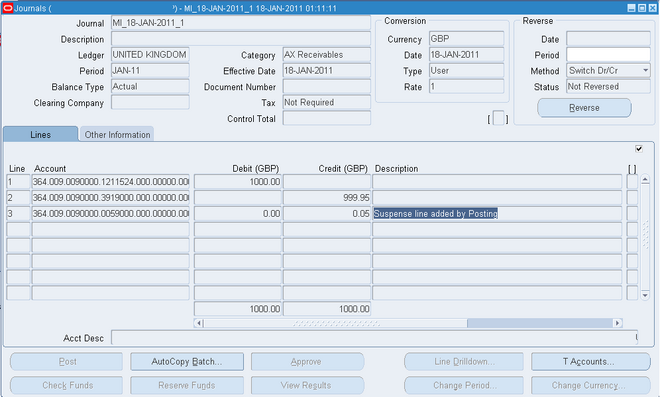
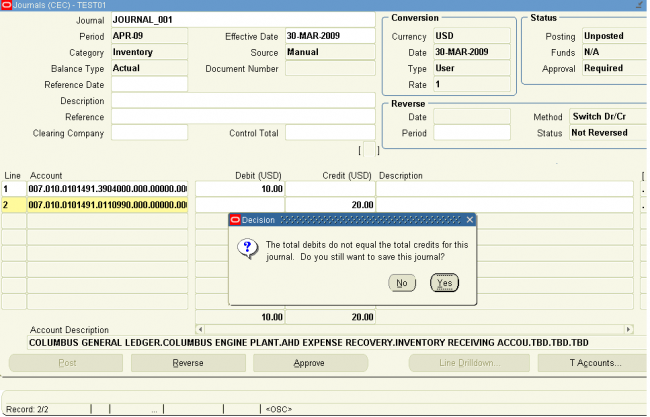
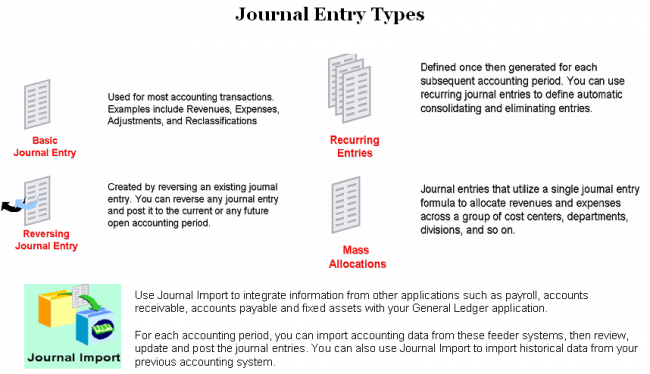
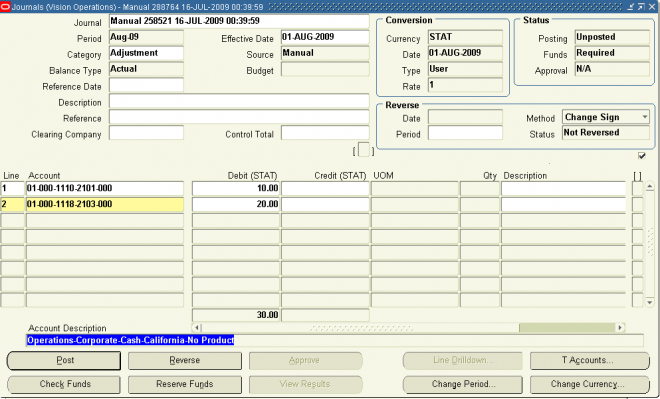
The accounts are collectively referred to as the ledger. A journal is a place where entries (debits and credits) are written before they are written in the ledger. Modern computer systems generally have you make entries directly to the ledger and then produce printouts that are designed to look as if they were journals, which they may not be in reality.
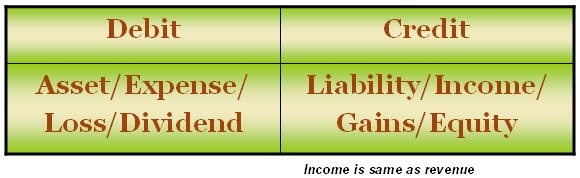
Debits and credits are neither positive nor negative values. The balance on an account is either a debit or a credit, not a positive or a negative value. Dividend, Expense, Asset and Losses (abbreviated as "D-E-A-L") accounts increase in value when debited and decrease when credited, whereas Gains, Income, Revenues, Liability and Stockholder's (Owner's) equity (abbreviated as "G-I-R-L-S") accounts decrease in value when debited and increase when credited.
What are Debtors/Creditors ?
Debtors are people or other firms who owe money to the firm. This will usually happen where the firm has sold goods with a period of credit. The firm sells the good or service but allows the purchaser a period of credit to pay - usually a month. During this month the purchaser owes the firm the money and is therefore a debtor.
If the firm has debts these are considered an asset, because when the debtors pay the firm will have converted the debt into cash in the bank. Because most debts are relatively short-term they are considered current assets. The other current assets are stocks and cash.
The amount of debtors a firm has depends on the line of business they are in. If most of their business is with trade customers where they have to offer credit then the level of debtors may be high. For many retail businesses, however, the level of debtors will tend to be relatively low as most of their sales are cash sales.
Creditors are liabilities. They are the businesses and people to whom the business owes money. Debtors are the businesses and people who owe the business money, and so are assets of the company.
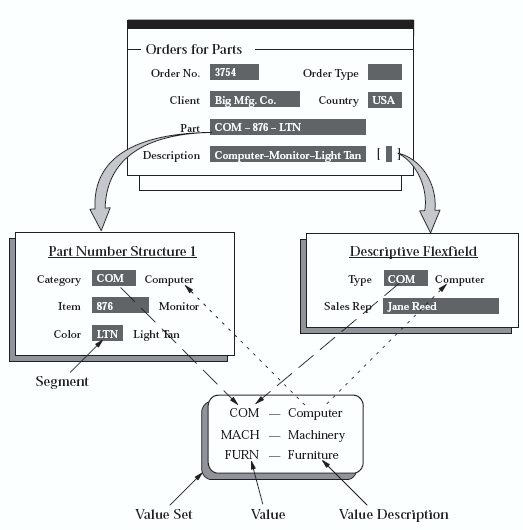
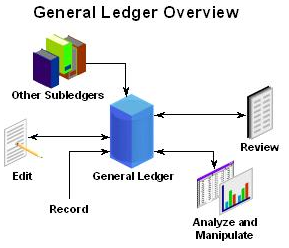


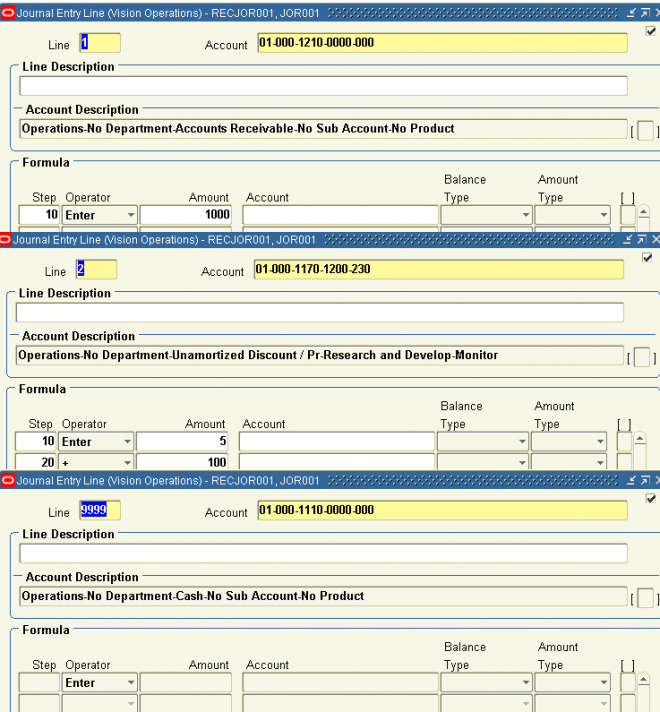
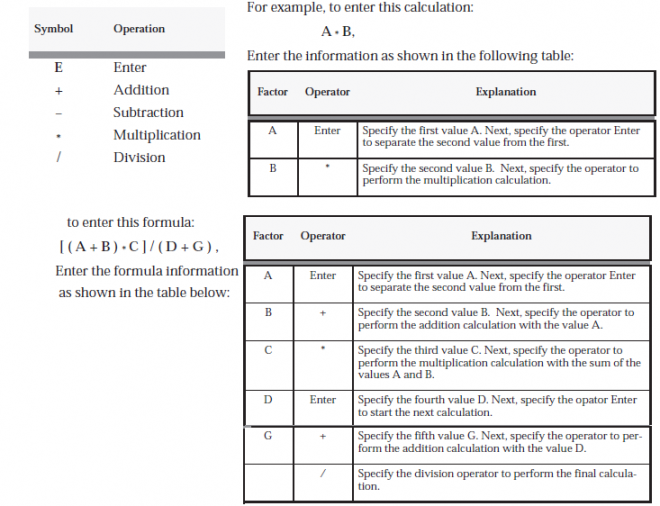
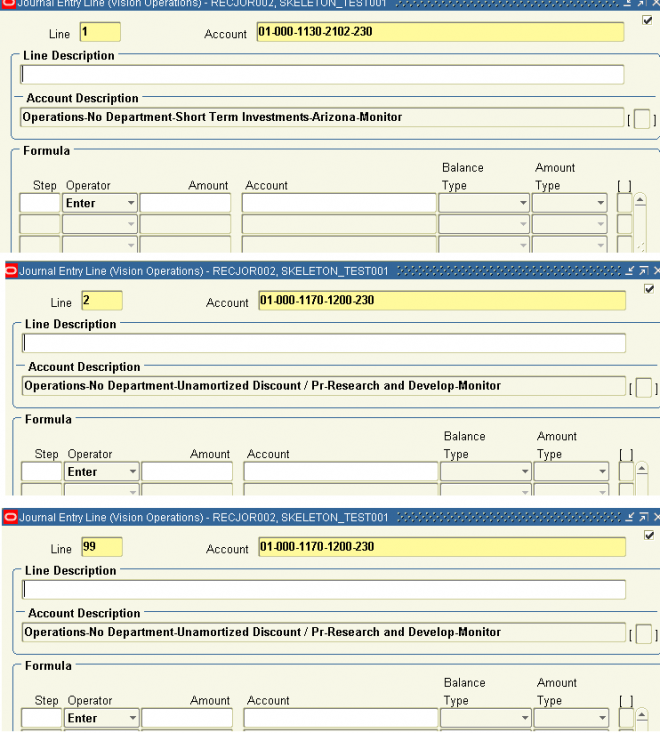
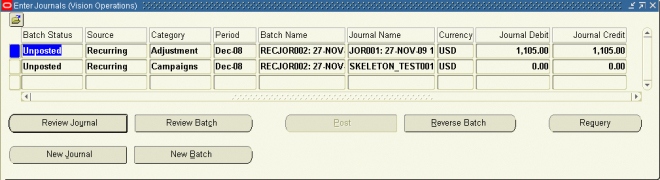
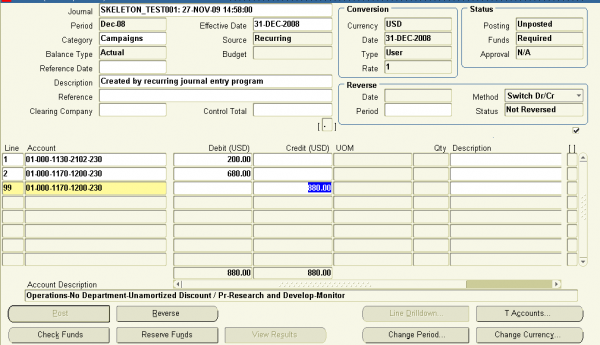
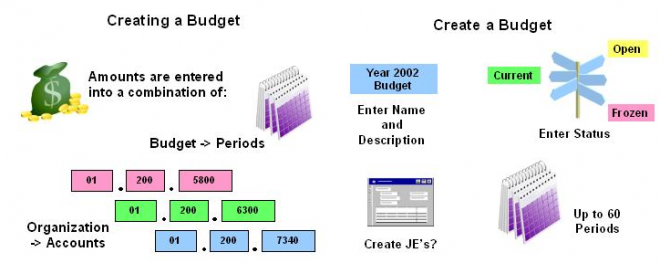
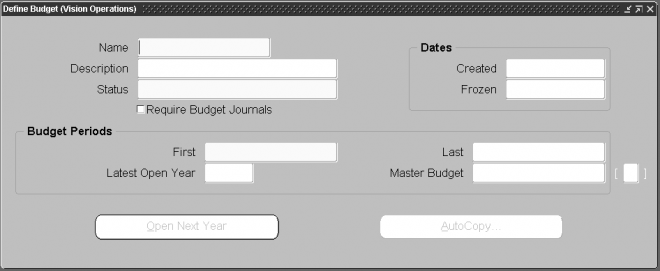
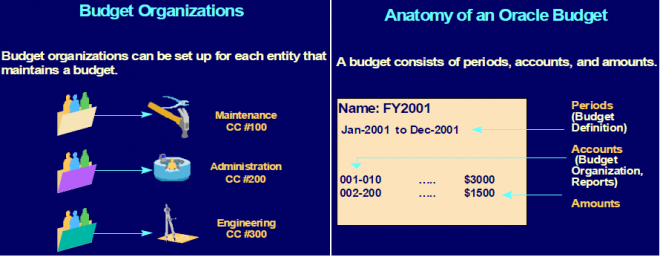



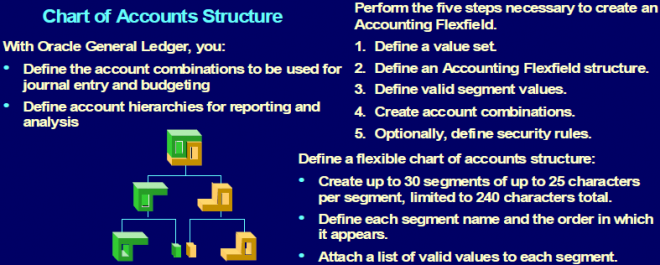
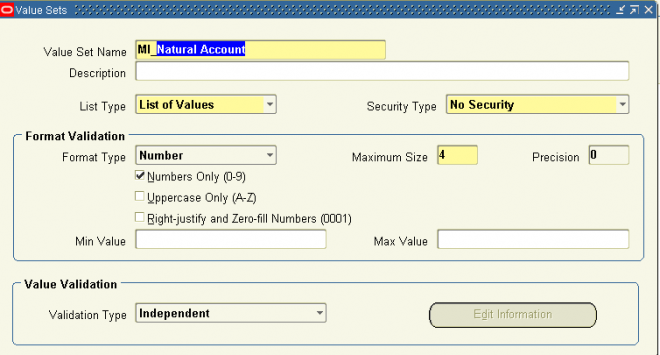
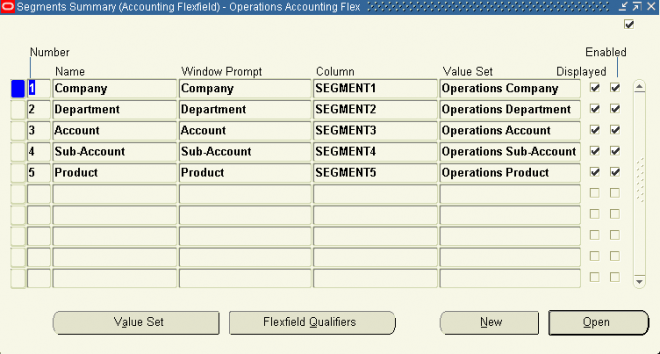
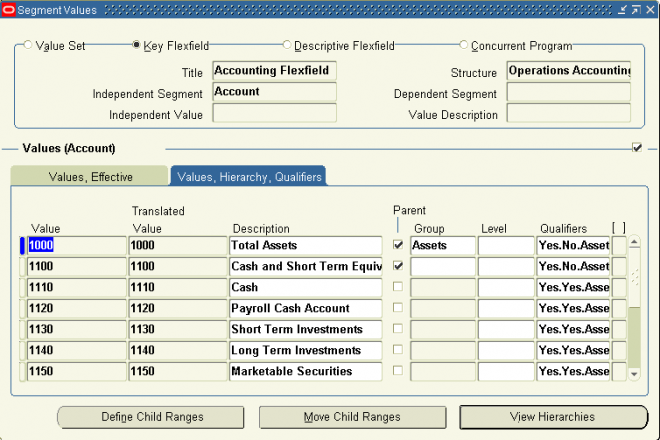
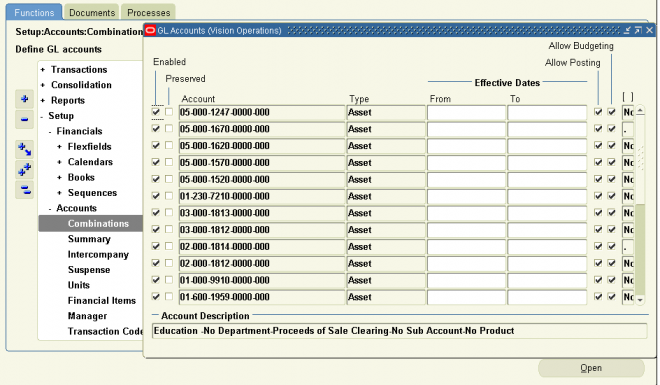
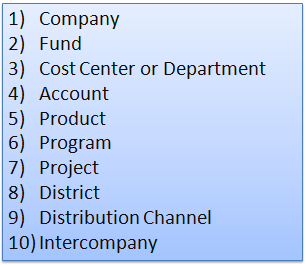
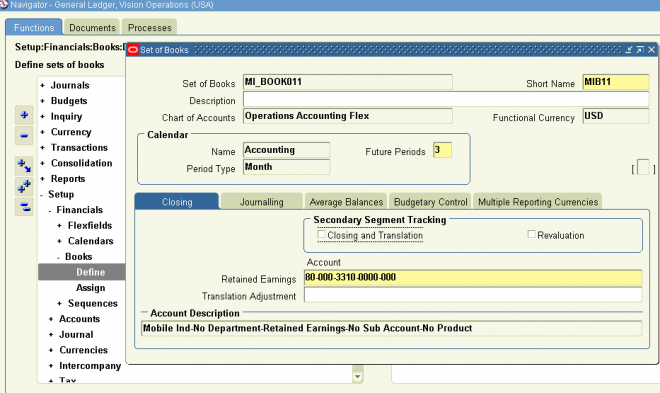
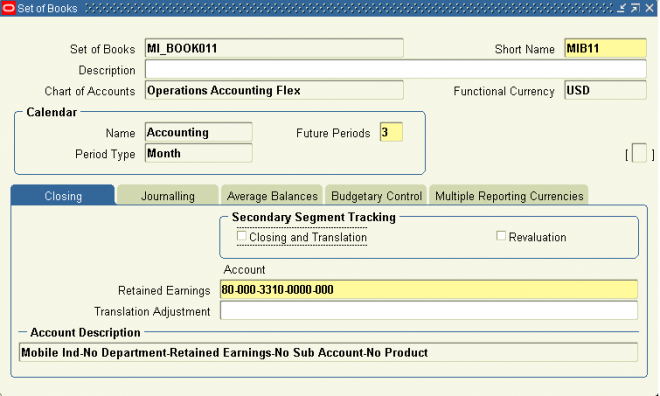
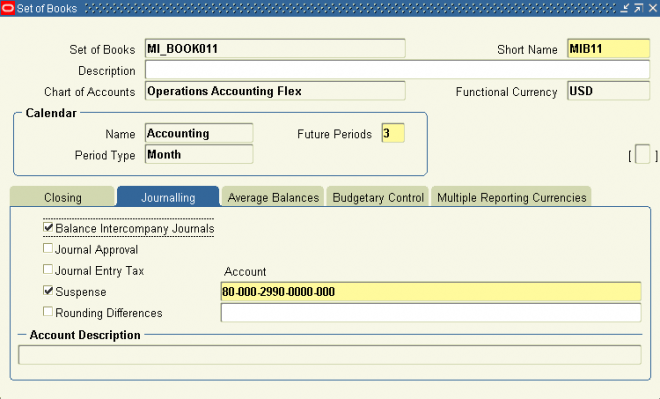
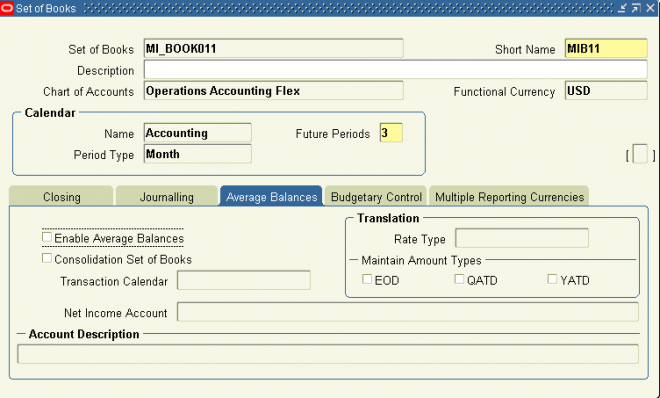
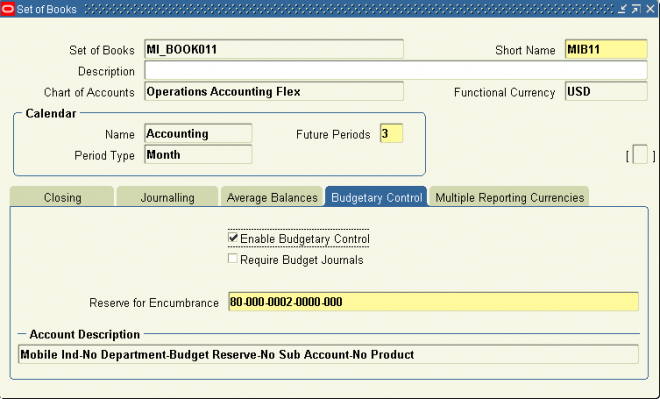
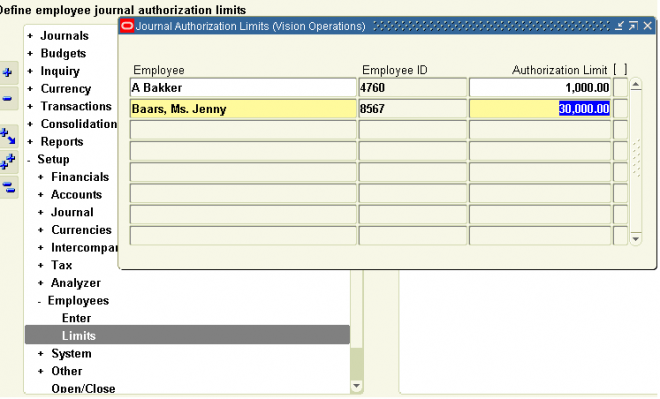

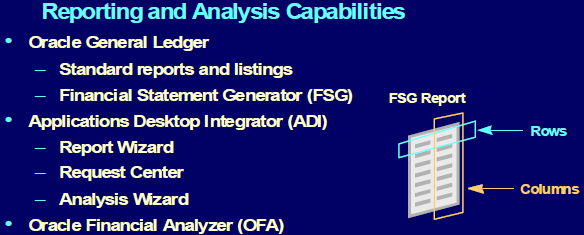

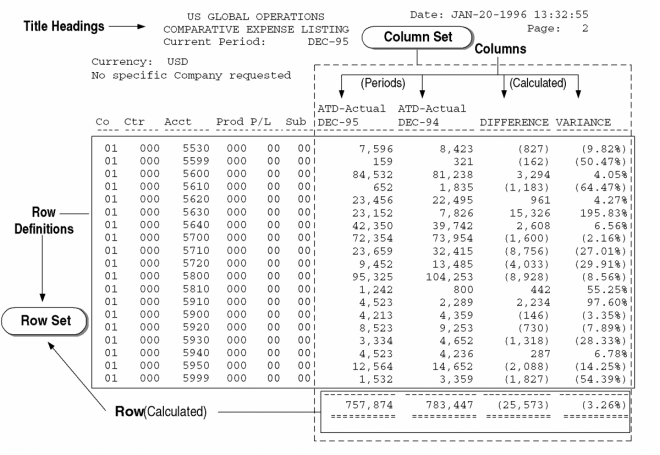
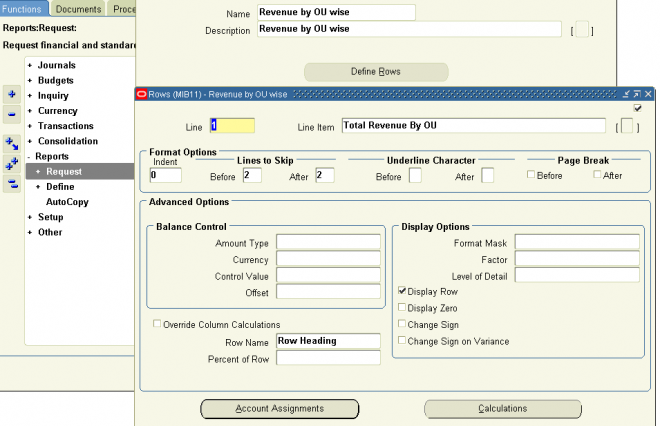
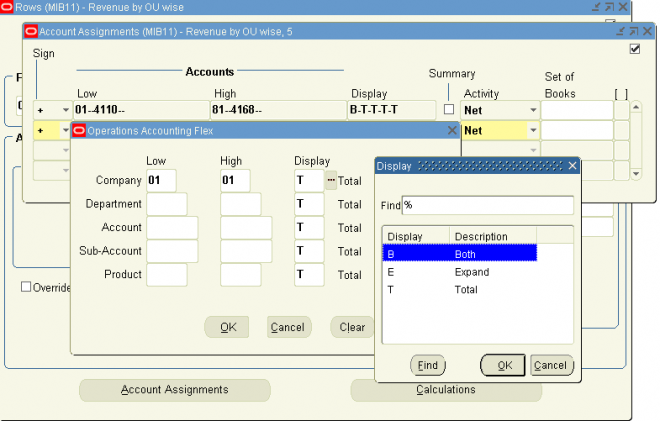
 entire chart of accounts.