Position
You define roles to represent the ways that different groups of employees work. In Oracle HRMS you can use jobs or positions, or a combination, to define roles.
Oracle HRMS uses jobs to represent the duties people perform and the required skills, for example:
- Professor
- Developer
- Accountant
Positions represent a specific instance of a job, such as: - Assistant Professor of Sociology
- Senior Software Developer
- Payroll Accountant
Job: A job is a generic role within a Business Group, which is independent of any single organization. For example, the jobs Manager and Consultant can occur in many organizations. You can also use jobs to set up supplementary roles that an employee might hold, for example, fire warden, or health and safety officer. You can distinguish these supplementary roles from other jobs by using Job Groups.
Position: A position is a specific occurrence of one job, fixed within one organization. For example, the position Finance Manager would be an instance of the job of Manager in the Finance organization. The position belongs to the organization. There may be one, many, or no holders of a position at any time.
Example
In a large structured organization, you may have a permanent establishment of positions for most of your employees.
However, you may also have groups of employees hired to perform specific tasks. This can be on a temporary or a permanent basis. Staff in this category can include agency workers, consultants and contractors. For these staff, you can define the role more flexibly as a job.
Using Oracle HRMS to Manage Jobs and Positions
As you implement your enterprise model, one of the earliest decisions you face is whether to use jobs, positions, or a combination of both. You can use Oracle HRMS to define required skills and valid grades for either one. Enterprises fall into one of three general categories: - Rule-based If your organization is a rule-based enterprise, you regulate employment, roles, and compensation according to strict policies and procedures. Fixed roles tend to endure over time, surviving multiple incumbents. You manage roles rather than individuals. Examples include government, higher education, and health care. Rule-based industries, where roles continue to exist after individuals leave, typically model the enterprise using positions.
- Project-based If your organization is a project-based enterprise, such as a construction or software company, you require the flexibility to assign people to new projects or organizations on a regular basis. You manage people and their skill sets, rather than fixed roles. This requires the flexibility to match competencies to tasks quickly and easily. Project-based organizations, where roles end when individuals complete a project, typically model the enterprise using jobs.
- Hybrid If your organization is a hybrid enterprise, you assign some individuals to fixed roles, and others to multiple projects. This is typical of large manufacturing or corporate enterprises. Hybrid enterprises such as these model the enterprise using both jobs and positions.
Roles
HRMS provides two key contexts for a role: the primary role and the HRMS role.
Primary role You set up primary roles using jobs and positions, as described above, to define the key tasks the enterprise employs people to perform.
HRMS role You set up HRMS roles to grant permission to authorize or approve HR actions, such as creating new positions, recruitment, hiring, or managing expenses. Roles also specify destinations in a routing and approval sequence, such
as initiator, classifier, reviewer, or approver. You can associate multiple users with the same role, allowing anyone occupying the role to process a position or budget transaction, or approve other changes, such as promotions or transfers
Defining a Position
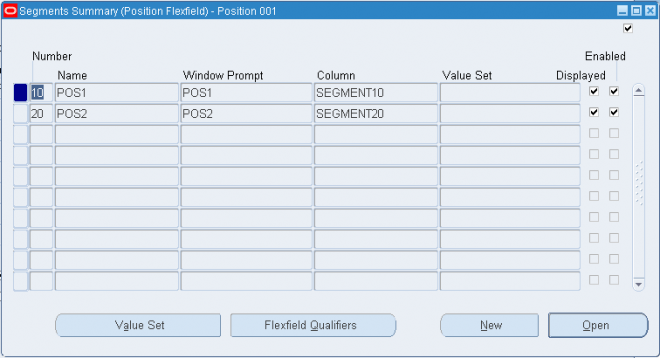
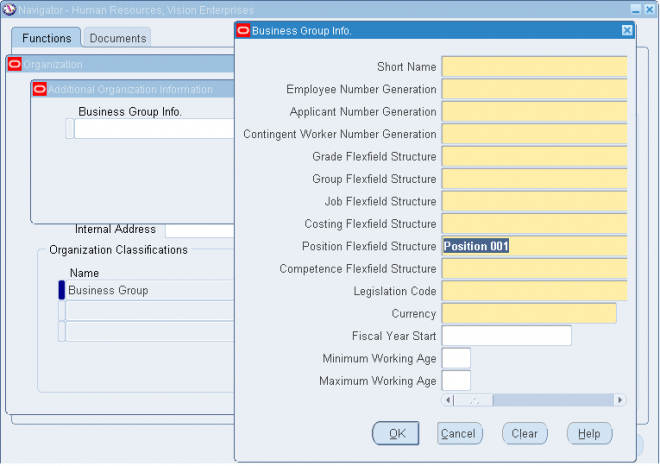
STEP 1: Define the position flex field structureSTEP 2: Assign the new position flex field structure to the business group
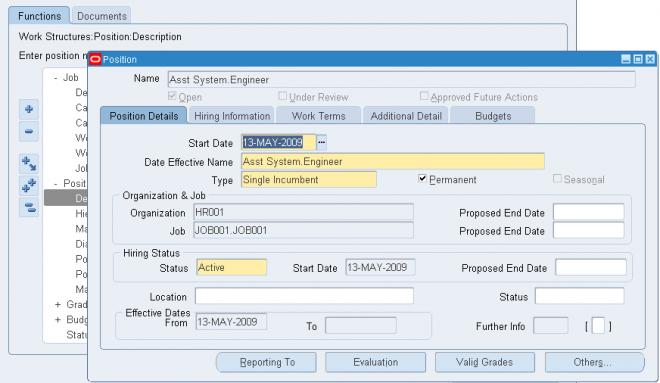
STEP 3: Define the new position.
Position Details
1. Position Management Check Boxes
The check boxes at the top of the window are for information purposes only. They are checked if the position belongs to an organization selected for position control. The check boxes indicate whether the position is:
Open: Unfilled
Under Review: Changes to the position definition are in process using a position transaction
Approved Future Actions: The position or changes to it are approved for a future effective date
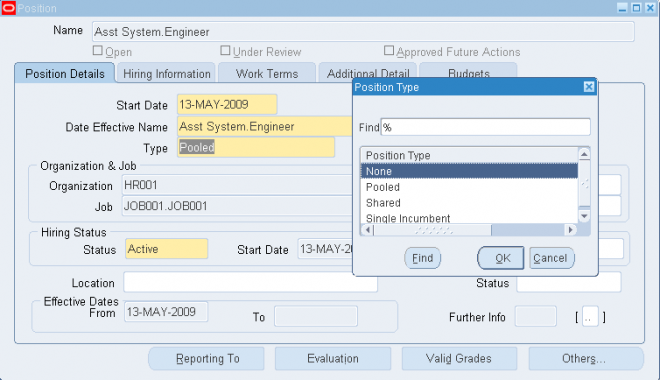
2. Select the position type. The choices are:
Single Incumbent, meaning that only one employee is allowed to hold the position at any time
Shared, meaning there can be several incumbents, up to the value of the FTE field
Pooled (Public Sector only), meaning the position is loosely defined so rules about FTE and hours are not enforced by the system
None, which you can select if you do not need to record position types
3. If the position is permanent and budgeted every year, select the Permanent check box.
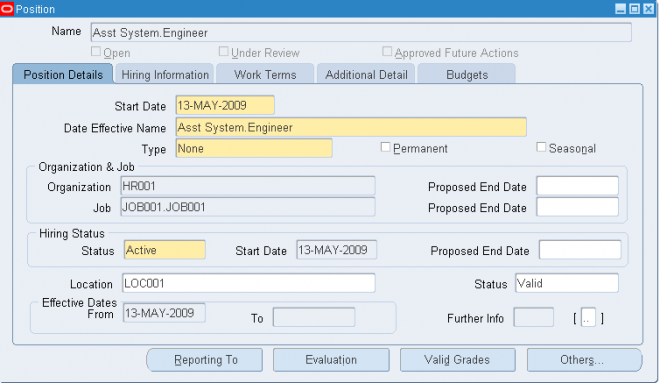
4. If the position is only used in one season each year (such as a summer teacher), select the Seasonal check box. You can enter the season dates in the Seasonal Information extra information type.
7. Select the organization and job for this position. They must have a start date on or before the start date of this position.
Note: You cannot change the organization or job once you have saved the definition. You can set up several positions that have the same job in the same organization. Each position name must be unique
8. Select a location for the position, or leave the default, which is the location of the organization.
9. Optionally, select a status for the position.
Selecting Valid or leaving the Status field blank enables employees to be assigned to the position, provided other conditions (such as an Active hiring status) are met. If the status is Invalid or any other status defined at your site, employees cannot be assigned to the position
Entering Hiring Information
1. Enter the number of Full Time Equivalents to be assigned to this position. If the Position Type is Single Incumbent, FTE must be 1.0 or less.
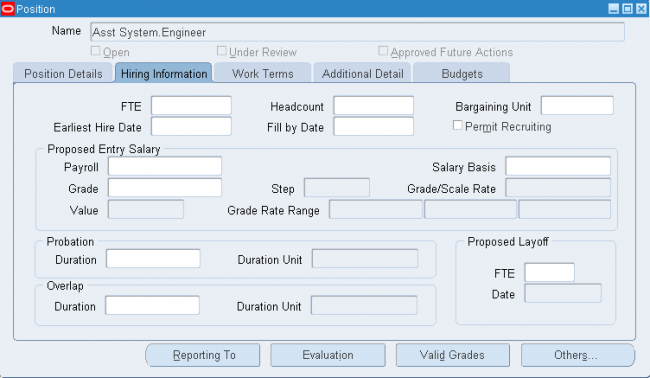
2. You can enter the number of incumbents that are planned for the position in the Headcount field.
3. If appropriate, select a bargaining unit code for the position. This is usually the legally recognized collective negotiating organization.
Note: You set up your different bargaining units as values for the Lookup type BARGAINING_UNIT_CODE.
4. If required, enter the earliest date at which incumbents can be hired into this position. If you have created a requisition and vacancy for this position, the earliest hire date must be within the vacancy dates.
5. Enter the date by which the position should be filled. This date must be on or after the Earliest Hire Date.
6. Use the Permit Recruiting check box to identify, for your own information, a position that is frozen but due to become active in the near future.
Note: The Permit Recruiting check box is for information purposes only.
Proposed Entry Salary
1. Select the payroll to which the position's incumbents are normally assigned. This payroll's calendar can be used for calculations of budgeted amounts and commitments.
2. Select the salary basis to which the position's incumbents are normally assigned.
3. Select the default grade to be used to determine the entry salary of position incumbents.
Note: If you maintain information about valid grades for the position or the position's job, this grade must be one of the valid grades.
4. Do one of the following, or leave these fields blank:
If the position is paid from a pay scale, select the grade step and scale rate that represent the entry level salary for this position. The system displays the value of the step on the scale rate you selected.
If you maintain a grade rate to hold entry salary for this position, select the appropriate grade rate. The value or range (minimum, maximum and midpoint values) for this grade rate are displayed.
Probation
If there is a probation period for this position, you can enter its length in the Probation region.
Overlap
Select the length of time a new incumbent can overlap with a leaving incumbent for transfer of skills.
Note: You can enter proposed start and end dates for particular periods of overlap using the Extra Information Types window.