Master Scheduling/MRP/SCP
Materials requirements planning, referred to by the initials MRP, is a technique which assists a company in the detailed planning of its production. Recall here that the master production schedule sets out an aggregate plan for production. MRP translates that aggregate plan into an extremely detailed plan
MRP Principles To order "As Late and As Little"
MRP concentrae on two parameters
- Timing - when to order
- Quantity - how much to order
With respect to the timing decision we always ordered as late as possible, but never planned a stockout. This is a driving principle in MRP, never order before you need to, never plan to stockout.
With respect to the quantity decision we always ordered as little as possible, i.e. just enough to avoid a stockout. This is known as the lot for lot rule, sometimes called LFL or L4L or LL rule. This quantity decision rule can be varied in MRP and some other rules are:
- fixed order quantity rule (sometimes called FOQ or FO) - the quantity ordered is an integer multiple of the same fixed amount each time an order is made
- fixed period requirements rule (sometimes called FPR) - the quantity ordered should be enough for a fixed number of periods
MRP has several objectives, such as:
Reduction in Inventory Cost: By providing the right quantity of material at right time to meet master production schedule, MRP tries to avoid the cost of excessive inventory.
Meeting Delivery Schedule: By minimizing the delays in materials procurement, production decision making, MRP helps avoid delays in production thereby meeting delivery schedules more consistently.
Improved Performance: By stream lining the production operations and minimizing the unplanned interruptions, MRP focuses on having all components available at right place in right quantity at right time.
MRP System:
A simple sketch of an MRP system is shown in figure. It can be seen from the figure that an MRP system has three major input components:

Master Production Schedule (MPS): MPS is designed to meet the market demand (both the firm orders and forecasted demand) in future in the taken planning horizon. MPS mainly depicts the detailed delivery schedule of the end products. However, orders for replacement components can also be included in it to make it more comprehensive.
Bill of Materials (BOM): BOM represents the product structure. It encompasses information about all sub components needed, their quantity, and their sequence of buildup in the end product. Information about the work centers performing buildup operations is also included in it.
Inventory Status File: Inventory status file keeps an up-to-date record of each item in the inventory. Information such as, item identification number, quantity on hand, safety stock level, quantity already allocated and the procurement lead time of each item is recorded in this file.
After getting input from these sources, MRP logic processes the available information and gives information about the following:
Planned Orders Receipts: This is the order quantity of an item that is planned to be ordered so that it is received at the beginning of the period under consideration to meet the net requirements of that period. This order has not yet been placed and will be placed in future.
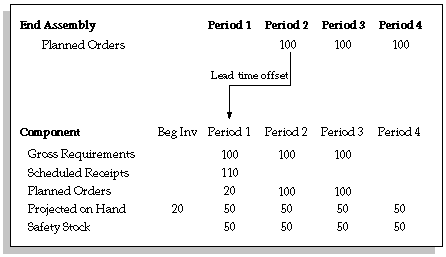
Planned Order Release: This is the order quantity of an item that is planned to be ordered and the planned time period for this order that will ensure that the item is received when needed. Planned order release is determined by offsetting the planned order receipt by procurement lead time of that item.
Order Rescheduling: This highlight the need of any expediting, de-expediting, and cancellation of open orders etc. in case of unexpected situations.
The netting process:
- Creates and reschedules planned orders
- Assigns sources to the planned orders, according to rank and sourcing percentages
- Generates dependent demand across multiple organizations