1.1 Adjusting Accounting Information

Tag:

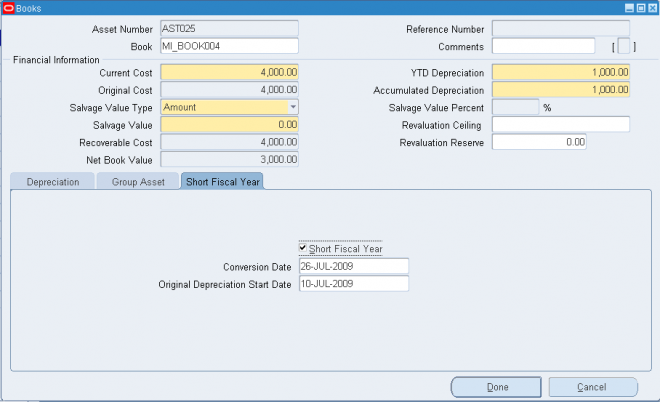
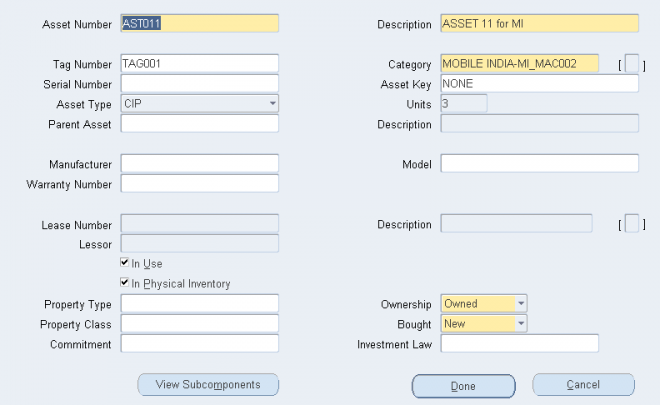
You can adjust financial, depreciation, distribution, and invoice information for an asset.

Changing Financial and Depreciation Information
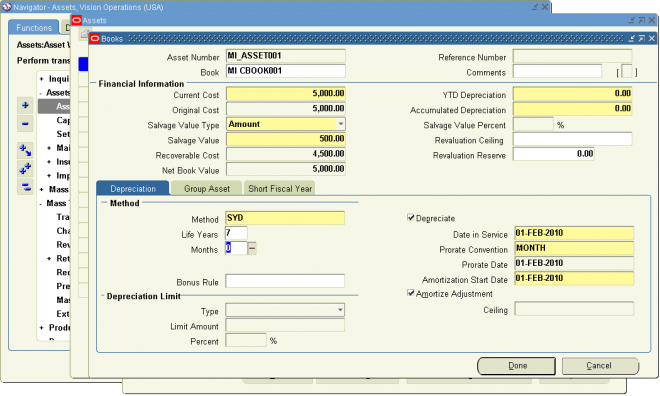
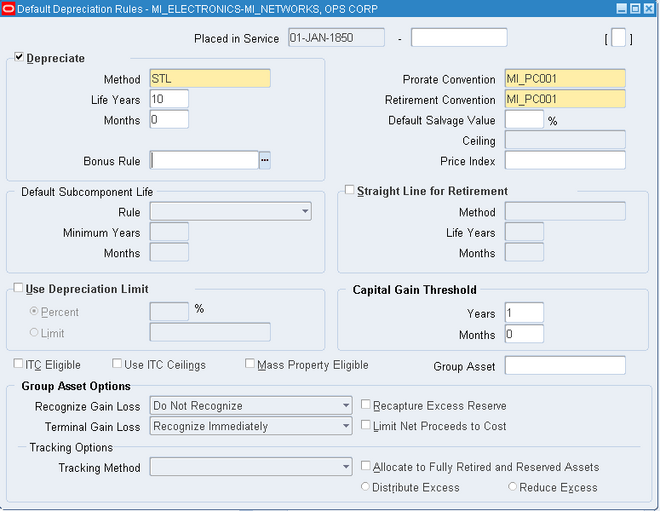
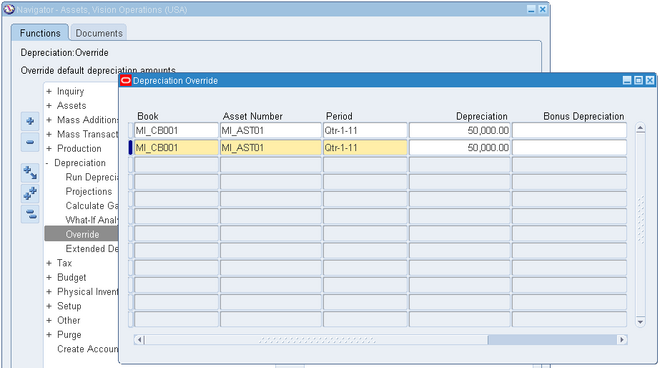
You can correct an error or update financial and depreciation information for a single asset or for multiple assets. You can also override depreciation information for an asset while adding it using the Detail Additions process.

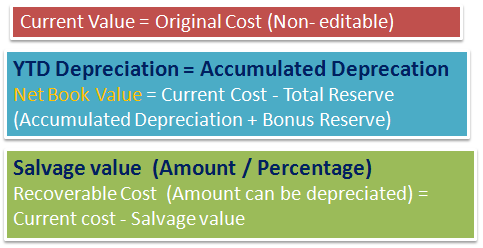
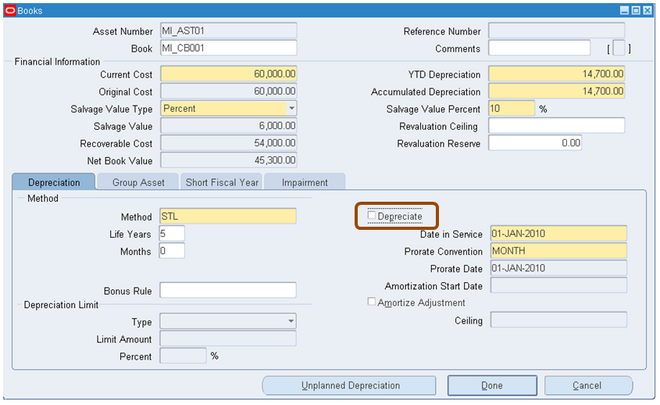
Before running depreciation (in the period in which you added the asset), you can change any field. After you have run depreciation (in any period after the one in which you added the asset), you can change asset cost, salvage value, prorate
convention, depreciation method, life, capacity and unit of measure (in the corporate book), rate, bonus rule, depreciation ceiling, and revaluation ceiling.

If the asset is fully reserved, you can adjust the same fields as for an asset for which you have run depreciation. If the asset is fully retired, you cannot change any fields.

You can choose whether to amortize or expense the adjustment.

To change financial information for a single asset:
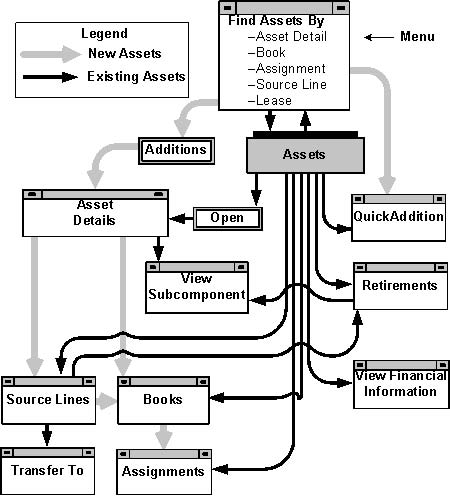
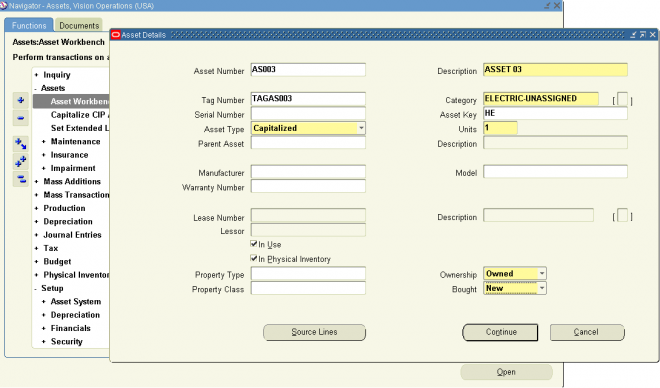
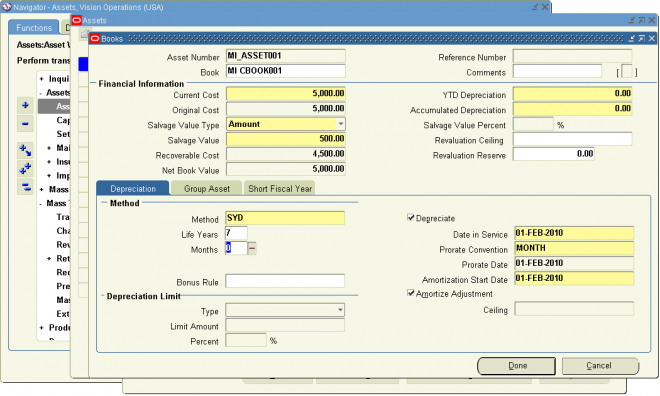
1. Choose Asset > Asset Workbench from the Navigator window.
2. Find the asset for which you want to change financial information.
Suggestion: For best performance, find by asset number or tag number since they are unique values.
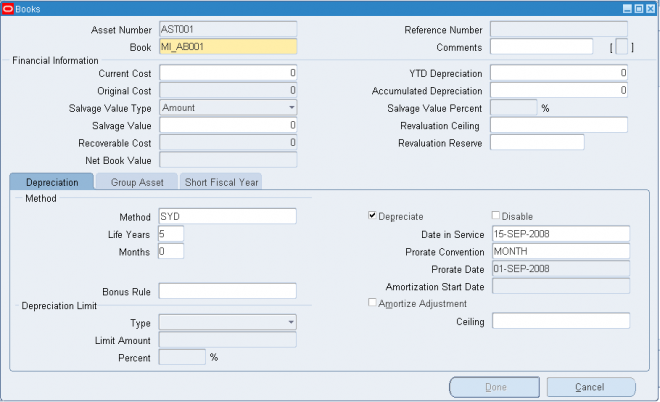
3. Choose Books.
4. Choose the Book to which the asset belongs.
5. Choose whether to Amortize Adjustment or expense it in the current period.
Note: When you adjust a group or member asset using a prior period amortization start date, Oracle Assets automatically submits the Process Group Adjustments concurrent program to calculate the prior period depreciation expense for the group asset. You must acknowledge the message containing the request number of the program submission.
6. Enter the new financial information for the asset.
Attention: You can change the depreciation method from units of production to a flat–rate or life–based method if the asset is not depreciating by units of production in any associated tax book.
Attention: You can only change the depreciation method from life–based or flat–rate to units of production in the period you added the asset.
7. Save your work.

Changing Financial Information for Multiple Assets (Mass Change)
When you change financial information for multiple assets using the Mass Changes window, the mass change transaction will exclude the following assets from the mass change transaction:

  • CIP assets.
  • Retired assets.
  •  
To change financial information for multiple assets
1. Choose Mass Transactions > Changes from the Navigator window.

2. Enter the Book to which the assets belong.

3. Select Amortize Adjustments if you wish to amortize your adjustments. If Amortize Adjustments is not selected, the
adjustments will be expensed in the current period. When Amortize Adjustments is selected, enter the Amortization Start
Date in the Change Date field. This allows you to select the date the amortization begins. The new date selected defaults to the current period date.
Note: When you adjust a group or member asset using a prior period amortization start date, Oracle Assets automatically
submits the Process Group Adjustments concurrent program to calculate the prior period depreciation expense for the group asset. You must acknowledge the message containing the request number of the program submission.

4. In the Change Date field, enter the date of the mass change.
You can perform a prior period depreciation rule change by entering a prior period date in the Change Date field and checking the Amortize Adjustment check box. The date in the Change Date field defaults to the current period date.

5. Select the assets you wish to change. Specify the asset numbers, dates placed in service, and category for which the mass change applies.

6. Select the asset type of the assets you wish to change in the Asset Type field, you can select one of the following values:
  • Capitalized
  • Group
The system will automatically include assets with an asset type of Capitalized or Group if you do not select an Asset Type.
7. Choose whether to Change Fully Reserved Assets.

8. You can use the Before and After fields as either information to change or as a selection criterion without changing the information.
When you enter the same value for the Before and After fields, the mass change affects only assets that match that information.

9. Specify the new financial information for these assets in the After column.

10. Select the group asset association of the assets you wish to change.
In the Group Association field, you can select one of the following values:

  • Member: The system will select only member assets belonging to a group asset for the mass change transaction.
  • Standalone: The system will select only standalone assets for the mass change transaction. All the member assets are excluded from the mass change transaction.
  • No Selection: The system will include all assets, regardless of the group association of the assets. For example, the system will include group, member, and standalone assets for the mass change transaction. If you do not select the group asset association in a Before field, you cannot select the Member or Standalone values in the corresponding After field. The default value of the Before and After fields is No Selection.
11. If you selected the Member value for the Group Association field, you must enter a valid group asset number in the Group Asset field.

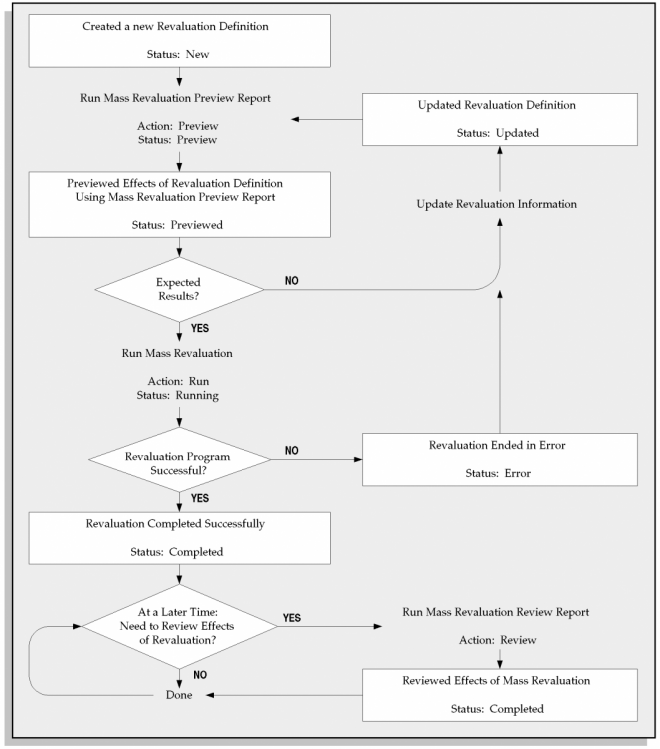
12. Choose Preview to run the Mass Change Preview report. Use this report to preview what effects to expect from the Mass Change before you perform it. If necessary, update the definition and run the preview report again.
The mass change status determines what action to perform next.
The following table defines each mass change status and their next actions available.

13. To perform the mass change, query the definition and choose Run. Oracle Assets submits a concurrent process to perform the change. If you wish to simultaneously run this program in more than one process to reduce processing time, Oracle Assets can be set up to run this program in parallel. For more information on setting up parallel processing and the FA: Number of Parallel Requests profile option,

14. To review a completed mass change, query the definition and choose Review. Oracle Assets runs the Mass Change Review report.

15. Review the log file and report after the request completes.

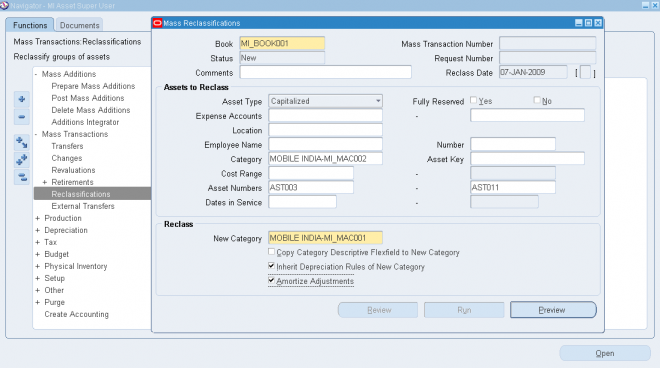
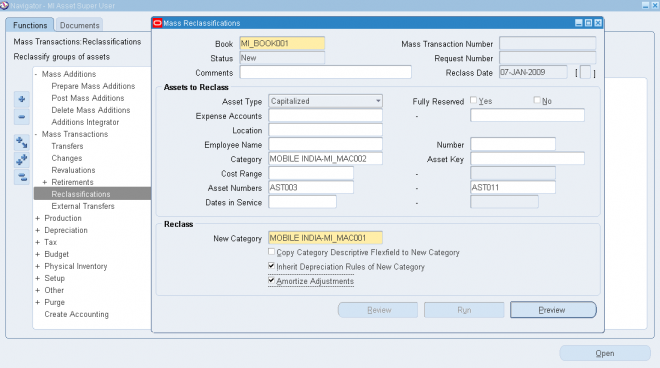
Performing Group Reclassifications using Mass Change
You can also use the Mass Changes window to perform a group reclassification by changing the group asset assignment of a range of assets. However, you cannot change both the depreciation rules and the group asset assignment of the capitalized assets in the same mass change transaction. You must perform the mass group reclassification as a separate mass change transaction.

When you use the Mass Changes window to change the group asset assignment of capitalized assets, the system will always use the Calculate transfer type to process the reclassification. The date placed in service of the asset changed is used as the group amortization start date. The date in the Change Date field has no affect on the group amortization start date.

Comments

Post new comment

The content of this field is kept private and will not be shown publicly.
All Rights Reserved. Copyright 2008-11 OracleUG.com.