Oracle Quality
Companies today operate in global markets that demand near–zero defect quality. High quality is required not just in production, but throughout the supply chain. ISO 9000 certification is a minimum requirement. To remain competitive, companies must respond to the pressures of reducing their costs while improving quality and customer service.
To address these challenges, most companies have implemented quality programs based on the principles and methodologies developed by Drs. Deming and Juran. Such programs have likely evolved over the years starting with the implementation of statistical process control (SPC); the adoption of zero–defect and continuous improvement programs; the acceptance of the total quality control (TQC) process, and a shift to the total quality management (TQM) approach.
Many companies have widespread quality requirements and consequently may have implemented several quality systems to address these requirements. Although these systems may represent a significant investment in quality processes, training, and software, users are often dissatisfied with them for a variety of reasons.
Oracle Quality Mission
The Oracle Quality mission, simply stated, is to complement and/or replace these divergent systems with an integrated, enterprise wide, flexible solution that meets your diverse quality needs. Oracle Quality is integrated with the Oracle Applications product suite to provide unified quality data definition, data collection, and data management throughout your enterprise and across your supply and distribution networks.
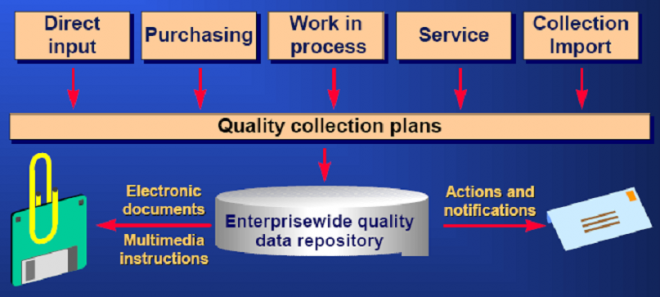
Oracle Quality’s flexible architecture can support a wide variety of business models and can change as rapidly as business demands. The word complement is important here. Remember that many companies have invested quite a lot in data collection systems, automatic test equipment, statistical analysis tools, etc. Our goal is to make Oracle Quality an open system with a data repository into which you can import data from existing data collection systems and out of which you can export the quality results you have collected.
ISO 9000
Oracle Quality lets you collect your company’s quality information and procedures to make ISO certification faster, simpler and more effective. ISO 9000 is not industry specific and is not an evaluation of a specific product or service.
It’s an evaluation of the consistency in execution and maintenance of internal operation procedures that directly affect a company’s ability to produce high quality products and services. ISO 9000 requires that you fully document your business processes that ensure high quality product and service. You must then prove that you do what you’ve documented.
Oracle Quality helps you document and track product and process defects, non–conformances problems, and general quality issues. You can determine what quality data to collect, track, and report using user–definable collection plans. For example, you can collect quantitative information, such as defective quantities or measurements, or qualitative information, such as critical test results and defect cause codes. You can document what defects occurred, what you did with the nonconforming material, and what corrective action you took. In addition, you can attach your ISO 9000 documentation and standard operating procedures to your collection plans so that users can access these documents on–line while they’re collecting quality data.
Total Quality Management
By making quality data collection a part of your standard workflow, you can distribute quality assurance responsibilities throughout your enterprise.
The most effective quality management system is one in which people in each functional area are able to define the critical quality data to collect, to take responsibility for collecting this data, and to produce meaningful output to track progress towards their quality goals.
Oracle Quality is a enterprise–wide repository for gathering and storing quality information. It helps enforce quality control and maximizes your quality tracking efficiency by integrating directly with Oracle Applications data and transactions.Oracle Quality accommodates dynamic business needs by letting you control when and where to collect data in your supply chain. Oracle Quality’s flexible architecture easily adapts to support your ever–changing TQM requirements.
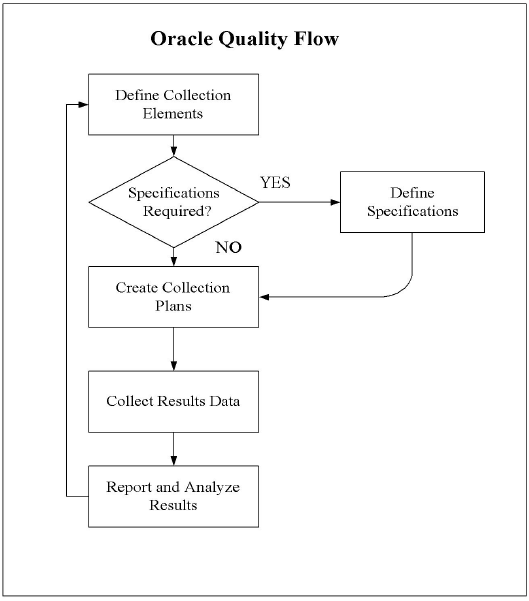
Quality Process Flow Diagram