Credit Check Rule
Credit Checking Rules within Order Management enable you to determine credit worthiness of orders when performing credit checking, and provide you with various options in determining your customer's credit exposure.
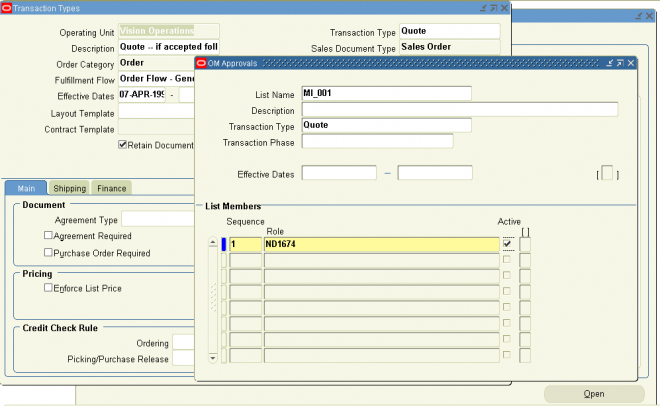
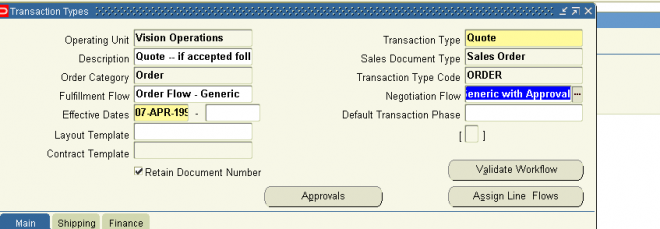
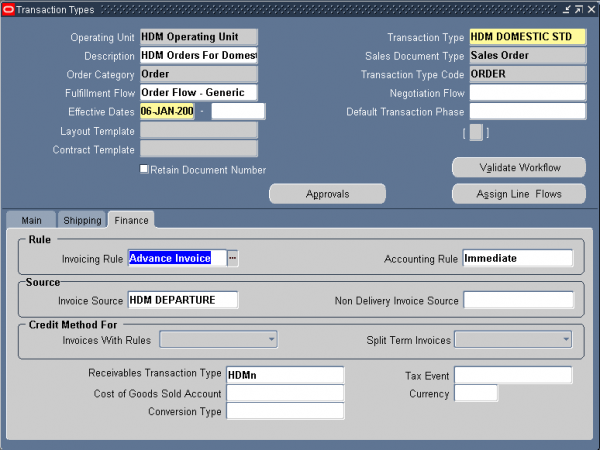
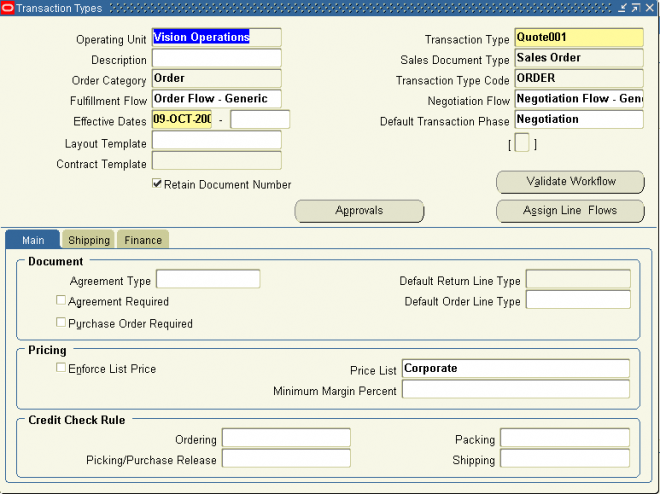
Credit Check Rules are attached to Order Management Transaction Types. Within the Transaction Type window, credit check rules are assigned to pre-specified workflow events that trigger the credit checking process. For example, you might
want to perform a high-level credit check before booking, but you may want to apply more specific controls before shipping the product to your customer.
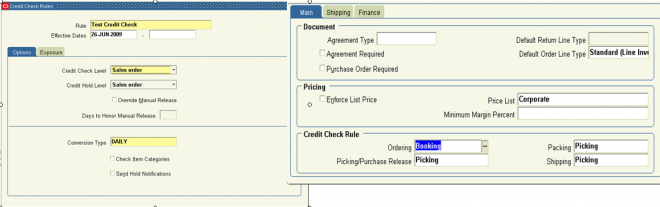
In Order Management, separate credit checking rules can be assigned for use at the time of booking, pick release and purchase release (for drop shipments), packing, or shipping within corresponding order or line workflow processes. You can also choose to perform credit checking at multiple points within an order or line workflow processes by selecting credit check rules for a combination of booking, pick release and purchase release (from drop shipments), packing, or shipping.
Options
The Credit Check process can be performed at sales order header or sales order line level. Additionally, the payment terms used for orders and order lines must be enabled for credit checking to occur.
Credit Check Level
1. Order Header Level: Order Level credit check uses exclusively header level information ignoring different bill-to sites detailed at line level. Order level credit check uses the credit profile attached to the customer Bill-to site defined at order (header) level. Credit checking will use order totals and will evaluate credit exposure against the credit profile attached at header level, and holds are always applied at header level.
2. Order Line Level: Line level credit check uses data at the sales order line level. If you have sales order lines that are attached to different Bill To sites and if you want to use the specific credit profiles attached to those Bill To Sites, you should use Sales Order Lines level credit check.
Additionally, you could use line level credit check when you have defined customer relationships in your system and you actively use them in Order Management. In this situation, you are able to create a sales order whose lines could be attached to different bill-to sites owned by different customers.
Hold Level
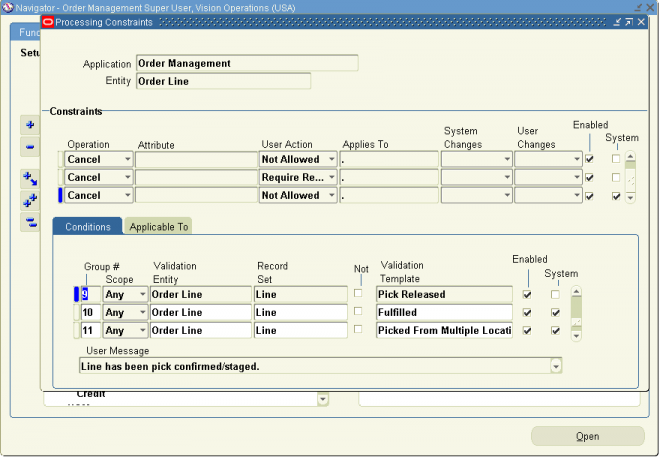
You can choose to place credit holds for orders or lines that fail credit check validations at either the sales order or sales order line if you use order line level credit checking. Credit checking holds are automatically placed based upon your credit rule definition, and you can automatically release order or order line credit holds when a customer’s credit exposure has been reduced to a point that enables credit checking validation to pass successfully. You automatically release credit holds by scheduling the Credit Check Processor concurrent program to run at specific intervals.
Override Manual Release (check box)
In previous releases of Oracle Order Management, you had the ability to manually release order or line credit check holds that were placed by credit check process. However, no additional credit checking of manually released credit holds occurred. You can now specify whether or not you wish to enable additional credit checking if an order or line credit check hold was released manually. The Override Manual Release check box, used in conjunction with Days to Honor Manual Release field, enables you to define the duration (number of days) you will forego additional credit checking if an order or line credit check hold is released manually.
Your Order Management Transactions Type definitions will control whether or not additional credit check processing can occur for manually released holds (credit check rules entered for booking, pick release and purchase release (for drop shipments), packing, or shipping within your transaction type efinitions).
Credit Checking Rule Days to Honor Manual Release
This field, in conjunction with the Override Manual Release check box, enables you to define the duration (number of days) manually released holds will be honored and not overridden by additional credit checking processes.
For example, suppose you have defined a credit check rule in which you have enabled the Override Manual Release check box, with a value of 15 within the Days to Honor Manual Release field. Assume that this credit check rule is assigned to the transaction type as a credit check rule for booking and shipping. If you manually release an order or line from credit check hold after booking, and if you ship the order or order line within 15 days, Order Management will not enable credit checking to occur again. However, if you ship after Day 15, then Order Management will enable the credit checking process to be invoked again.
Conversion Type
Conversion types for credit check rules enable you to model a fixed exchange rate between currencies or use an average exchange rate. When performing credit checking, the credit limit currency does not necessarily have to be the same as the functional currency. Conversion types are limited to the values you define within the Oracle General Ledger Conversion Rate Types window.
Notifications
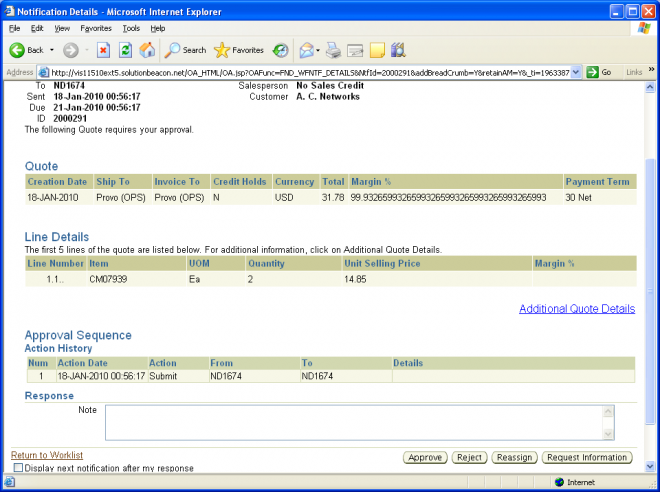
You can choose to send notifications whenever a sales order or order lines fails credit check. The notification is sent to the person who created the order.
Exposure
You can choose how you wish to validate credit worthiness during credit checking by determining the exposure method used.
Previous versions of credit checking calculated customer exposure accessing underlying transactional tables. When a credit check request was executed, underlying transaction tables were summed to generate customer balance information.
In order to improve performance, Oracle Order Management has incorporated an additional option, the use of pre-calculated exposure. Using this option, credit checking will validate exposure against balance information stored in a summary table. The summary table is updated as often as your business practices require, and updates to the table are performed by submitting a concurrent program. This program accesses both Oracle Receivables and Order Management transactional Overview of Credit Checking tables, and should be scheduled to run periodically, based on your specific business needs.
Credit Checking Rule Values to include within exposure calculation Your credit checking rule definition can include or exclude the following credit related details when calculating credit exposure:
- open receivables balances
- uninvoiced order balances
- freight and special charges
- taxes
- payments at risk
- Credit Checking Rule
Exposure
1. You must activate either the Include Open Receivables Balance check box or the Include Uninvoiced Orders check box in your credit check rule. You can activate both, but you cannot toggle both off.
2. If you checked Include Open Receivables Balance, enter a value to indicate the range of dates for open receivables that you want to include in this credit check rule.
Negative Number: Includes past due, current, and future open receivables up to X days beyond the current date.
Positive Number: Includes open receivables with invoice dates X days earlier than the current date.
No Value: Includes all open receivables.
3. Indicate whether to include uninvoiced orders in this credit check rule.
You must activate either the Include Open Receivables Balance check box or the Include Uninvoiced Orders check box in your credit check rule. You can activate both, but you cannot toggle both off.
4. If you checked Include Uninvoiced Orders, enter the number of scheduled shipping horizon days for uninvoiced orders to include in your total credit exposure.
For example, if you enter 45, your total exposure includes only uninvoiced orders scheduled to ship within 45 days of the current date. Orders scheduled to ship after 45 days are not included.
5. If you include uninvoiced orders in your credit check rule:- Indicate whether to include orders currently on hold.
- Indicate whether to include tax on uninvoiced orders.
-
Credit checking calculations on open receivables always include tax amounts and are not affected by the Include Tax option. If the performance of credit checking requires improvement you can toggle off this option.
6. If you include open accounts receivables balance in your credit check rule, indicate whether to include payments at risk when calculating a customer's outstanding balance.
Receipts at risk are remitted receipts that have not been cleared, or discounted (factored) receipts that have not been risk eliminated. If the performance of credit checking requires improvement you can toggle off this option.










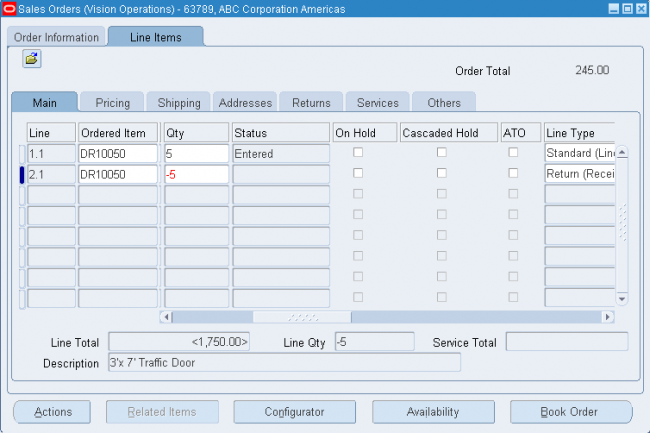
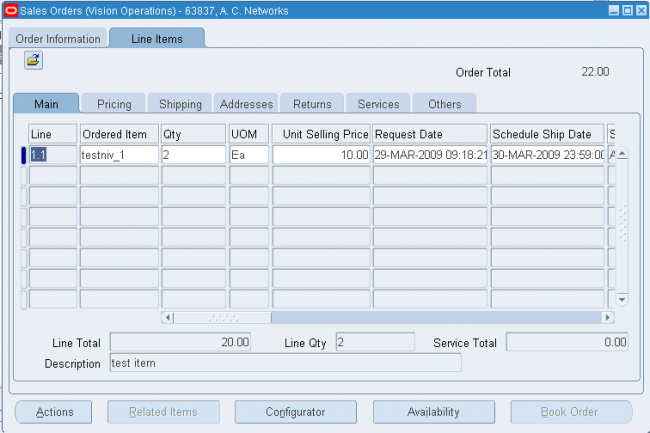
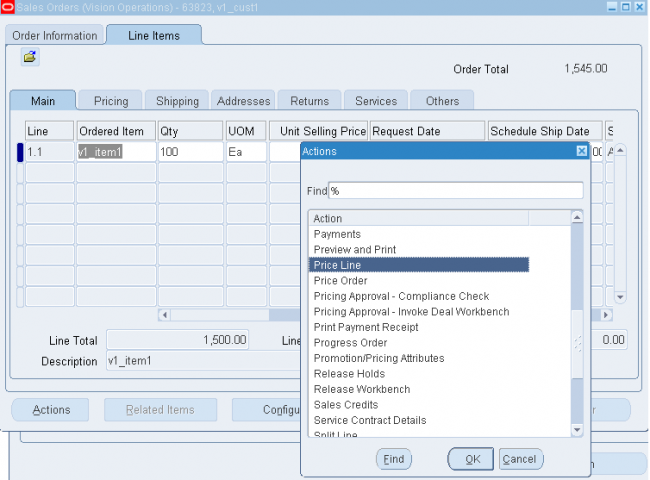
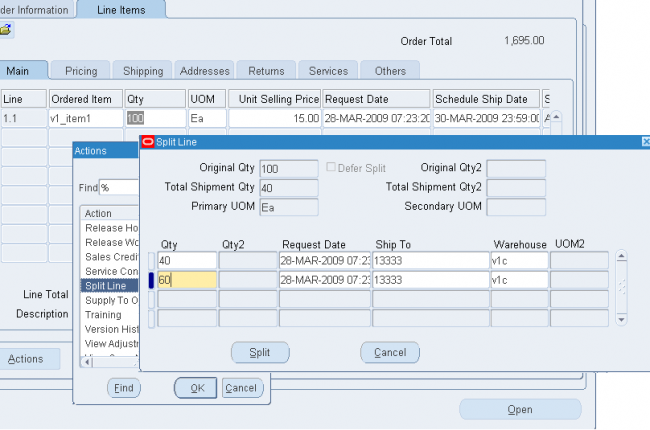
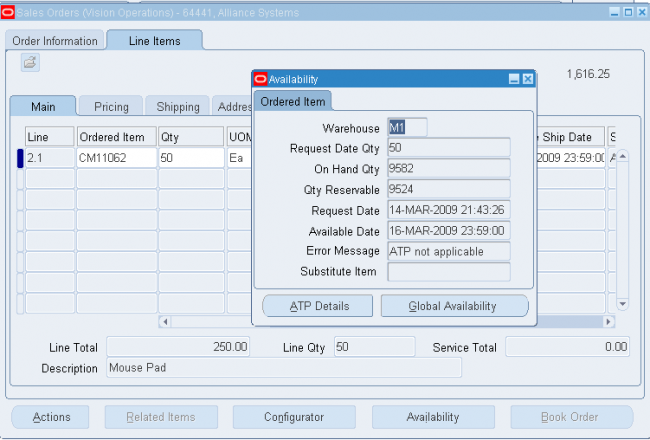
 Line number field automatically defaults to 1.1 if this is the first line entered on the order.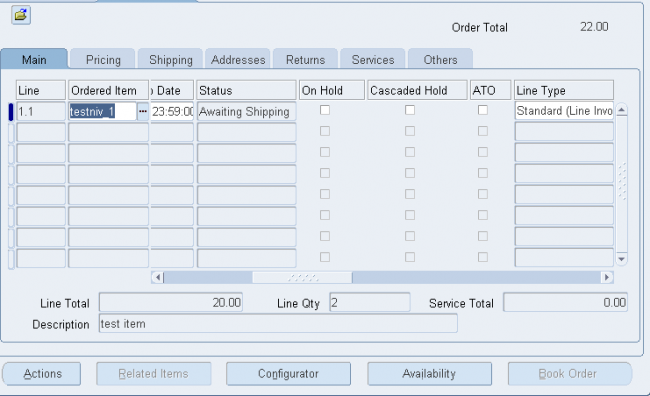




 the customer, site, item, warehouse, ship date, and order type.