Resources and Resource Lists
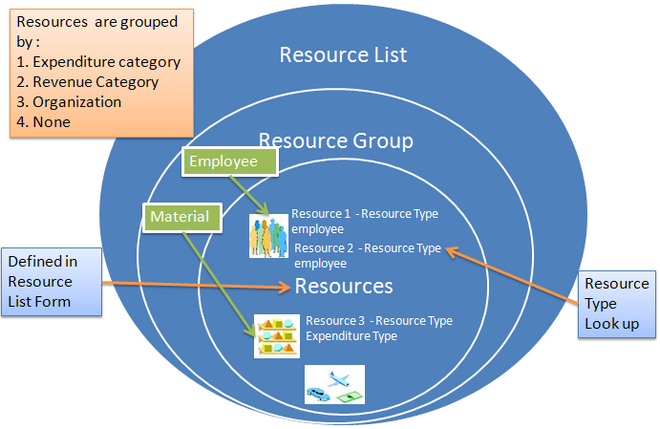 Resources are the labor, services, materials, equipment, and other items needed to track, complete, and account for project work. You use resources in Oracle Projects to categorize amounts for budgeting and forecasting, and to summarize actuals and commitments for project status tracking.
Note: You must set up resource lists for each business group. Resource lists are shared among operating units associated with the same business group. You can define a resource list by copying it from an existing resource list in the same business group.
Resources
You use resources as flexible groupings by which you can:
• Categorize budget and forecast amounts
• Summarize actual amounts
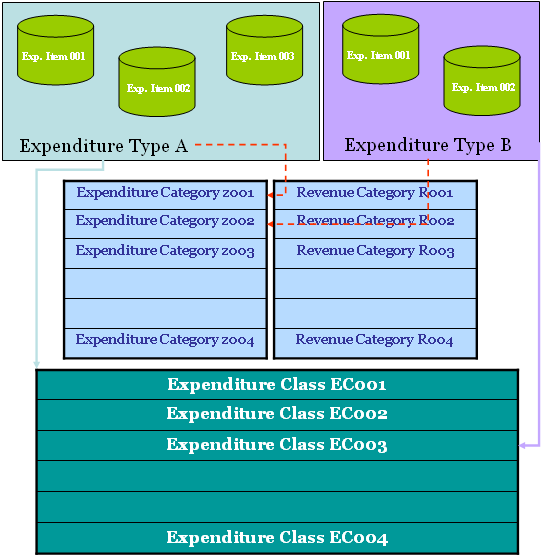
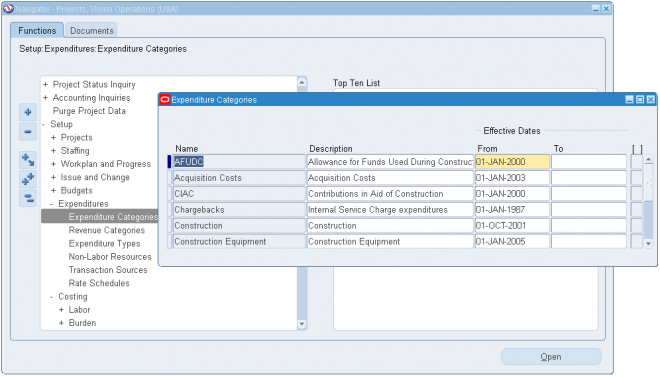
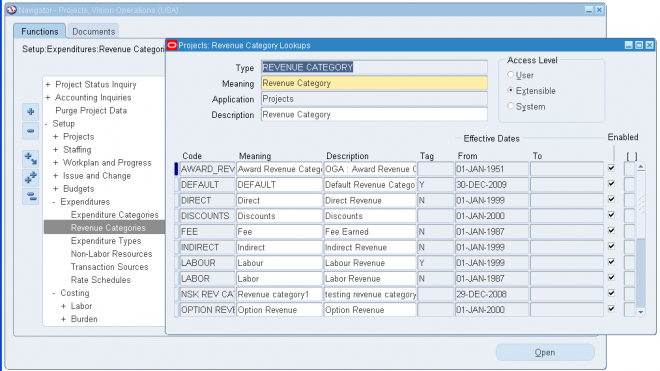
You can define resources as employees, organizations, jobs, suppliers, expenditure categories, revenue categories, expenditure types, or event types.
Resource Lists
Your company has a unique way that it uses and tracks similar types of resources for similar kinds of project work. You can define resource lists to create sets of similar resources that you typically use on specific kinds of projects. You can define a simple list of resources or a two–level hierarchy of resource groups and resources.
You can group resources by expenditure categories, revenue categories, or organizations.
You can define resource lists that classify budgets, forecasts, and actuals in different ways. Resource lists provide multiple roll up structures for summarizing actuals and commitments for cross–project reporting. For example, you can define one resource list by employee and another by
job for reviewing actuals using different roll ups.
You can set up your project budgets and forecasts to enter amounts at either a resource group or resource level. Oracle Projects summarizes actuals and commitments using the lowest level in the resource list then rolls up the amounts to the resource group. These capabilities enable you to review budgets, forecasts, and actual amounts at a summary level then drill down to the resource–level details.
You can define different types of resources within a resource group. For example, you can create resources of employees and jobs for the Labor expenditure category, resources of suppliers under Outside Services, and use expenditure types for all other expenditure categories. This flexibility enables you to define different resource groups as required for budgeting and forecasting, and to best track the actuals for each resource group.
You can specify a job group when you define a resource list. When the resource type is Job, the job group controls which jobs can be selected for the resource.
When you define a resource list, you specify the following values:
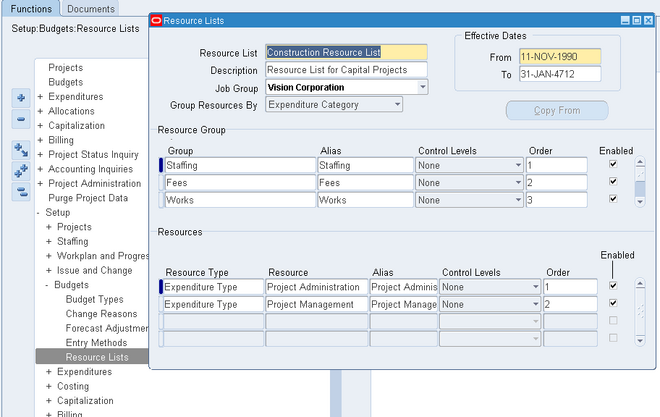
Resource List
Name Enter a unique name that identifies the resource list. Job Group If the resource type is Job, then the job group controls which jobs can be selected for the resource. In Single Business Group Access mode, only the job group from the current business group can be used.
In Cross Business Group Access mode, any job group can be used. Master job groups cannot be used for resource list assignment. Group Resources By You can group resources by expenditure category,
revenue category, or organization, or select None if you don’t want to group resources for the resource list.
If you choose to group resources, then you must enter the resource groups. If you choose to not group resources, then you skip the resource groups region and directly enter your resources.
Resource Groups
Group Select expenditure categories, revenue categories, or organizations as your resource groups. You should include all expenditure categories, revenue categories, or organizations in your
resource list.
Alias Enter an alias name for the resource group for display when you are budgeting, forecasting, and viewing project status. Control Levels Optionally, specify default control level values for the
resource group.
Order Specify the order in which you want to view the resource groups in Project Status Inquiry. This enables you to order the categories with the highest visibility first. For example, if Labor is your primary cost, then you can choose to display the Labor expenditure category as the first resource group, followed by Travel and Outside Services expenditure categories.
Enabled You can disable the resource group so that Oracle Projects does not allow entry of budgets or forecasts using the resource group, nor use it when summarizing actuals by resources for that resource group.
Resources
Type Select the type of resource that you want to enter. You can choose from the following resources: Employee, Job, Organization, Supplier, Expenditure Type, Event Type, Expenditure Category
Revenue Category
Resource Choose a resource from the list of values for the resource type.
Alias Enter an alias name for the resource for display when you are budgeting, forecasting, and viewing project status Control Levels Optionally, specify default control level values for the
resource.
Order Specify the order in which you want to view the resources in Project Status Inquiry. This enables you to order the resources with the highest visibility first. For example, you may want to display senior–level jobs first so you order the resources of Job in the following order: Principal Consultant, Senior Consultant, Staff Consultant.
Enabled You can disable the resources so that Oracle Projects does not allow entry of budgets or forecasts using the resource, nor use it when summarizing actuals by resources.
Identifying Labor Resources
Oracle Projects automatically determines which resources and resource groups in a resource list are labor resources. Resources that are tracked as labor are as follows:
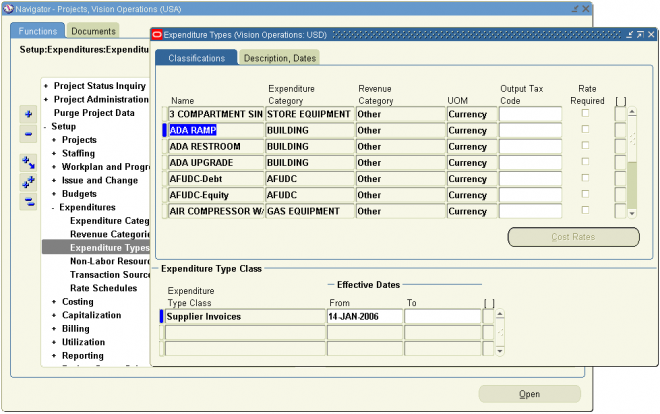
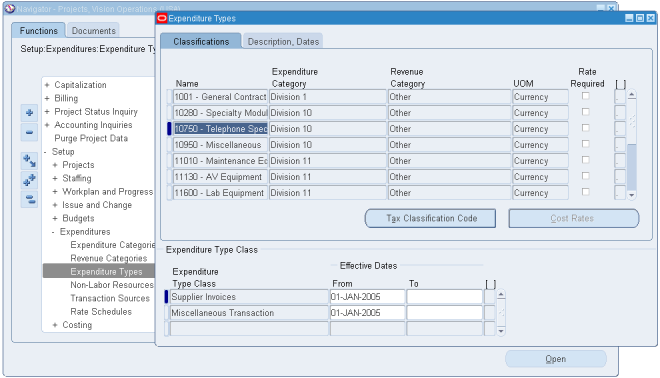
• Expenditure types with an expenditure type class of Straight Time or Overtime
• Expenditure categories and revenue categories that classify at least one expenditure type with an expenditure type class of Straight Time or Overtime
• All employees, jobs, and organizations defined below a resource group (expenditure category or revenue category) that is a labor resource group, or that are defined in a resource list without
groups
The unit of measure of a labor resource is set to hours. Oracle Projects summarizes the quantities of labor resources as labor hours at the project, task, and resource levels. You can see all other quantities other than labor hours at the resource level only; they are not summarized to the project and task levels.
Determining the UOM for Resources
As you enter the resources in a list, Oracle Projects automatically determines the unit of measure for the resources, as follows:
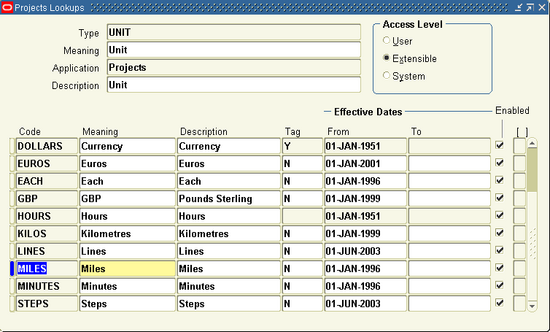
• Expenditure type resources use the unit of measure of the expenditure type.
• For employees, jobs, and organizations, the unit of measure is Hours.
• Resources that are tracked as labor use a unit of measure of Hours All other resources do not have a default unit of measure. You can only enter budget or forecast quantities for resources with a unit of measure.
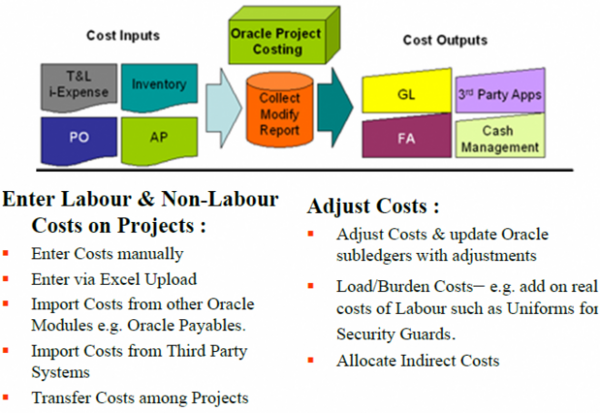
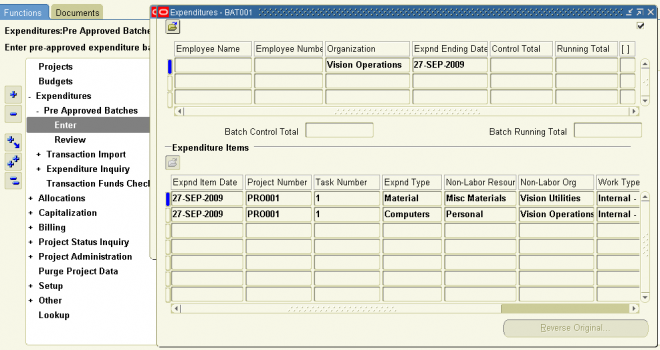
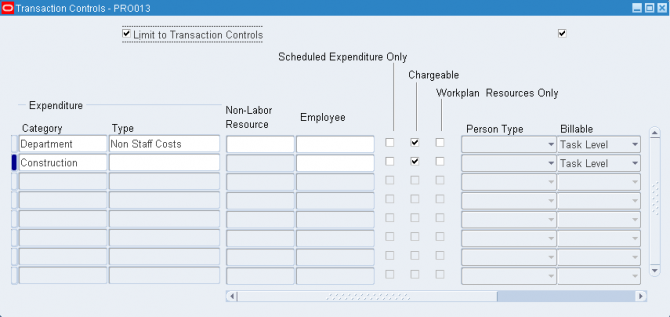
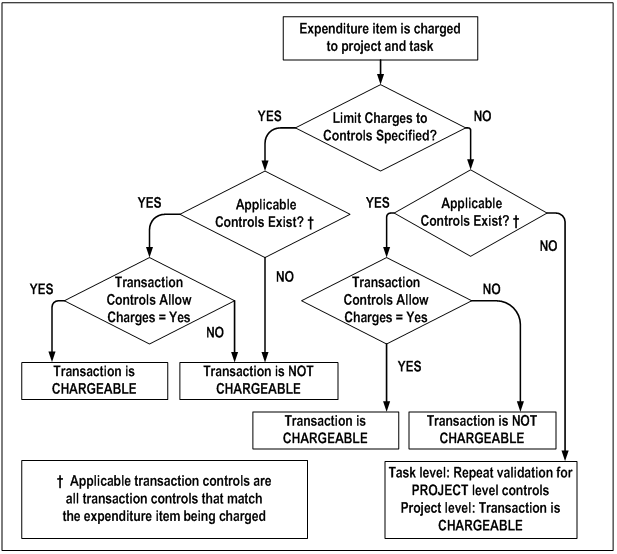
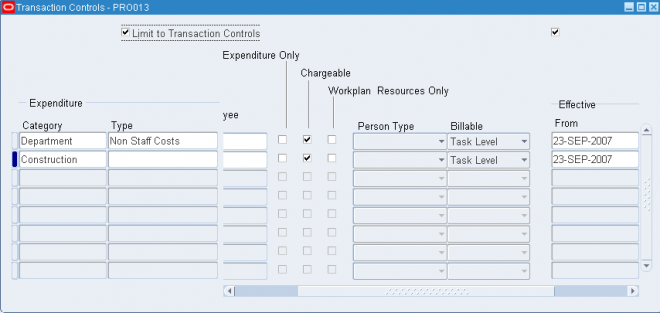
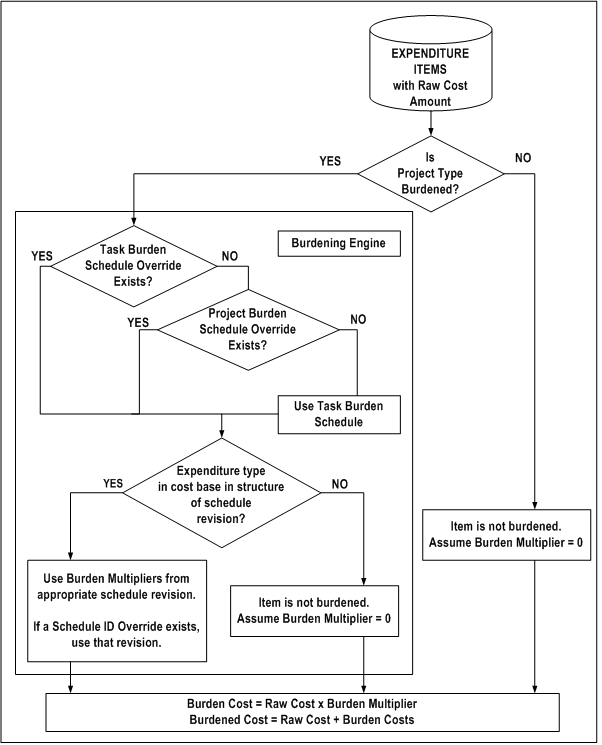
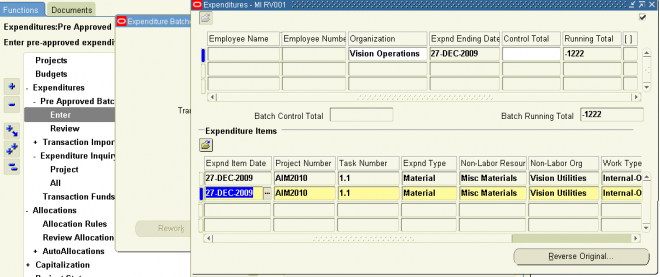
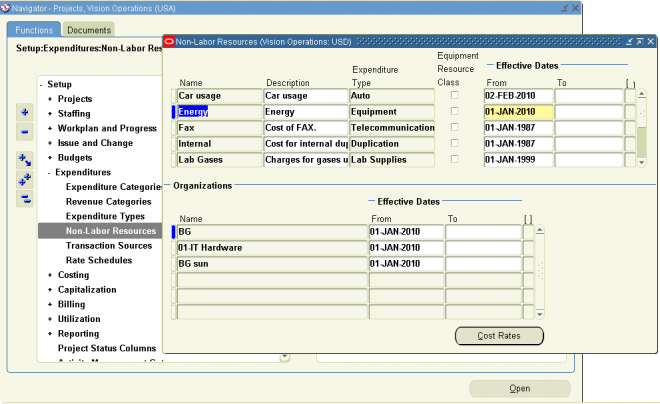
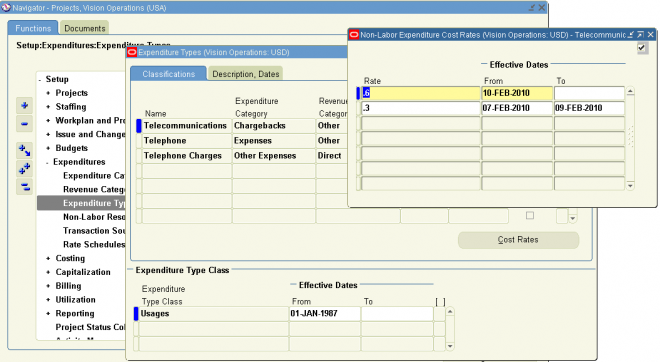
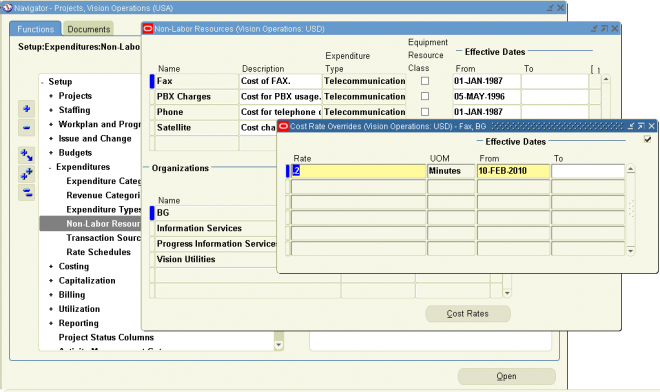

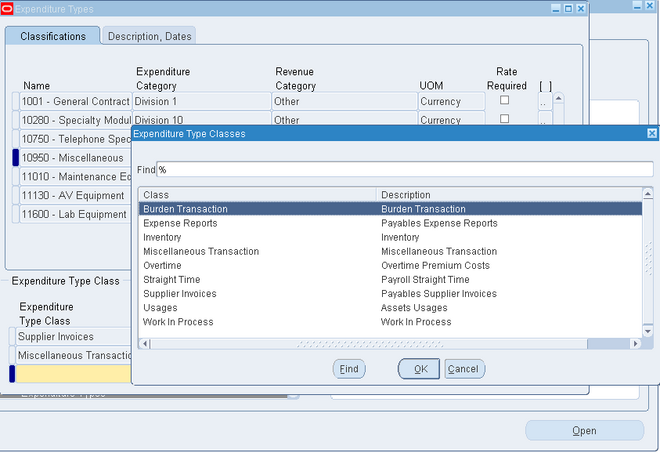
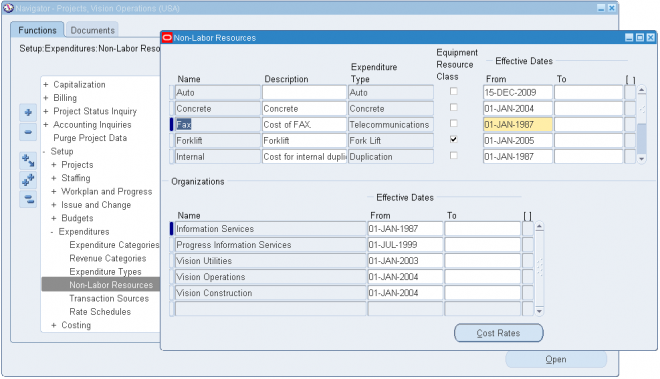
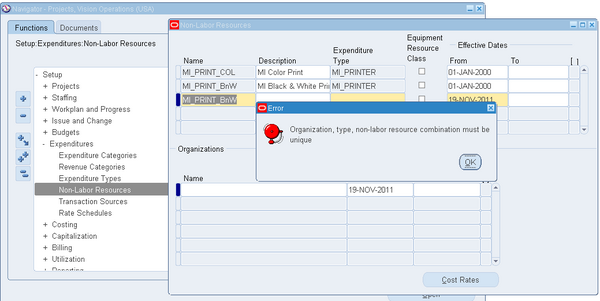
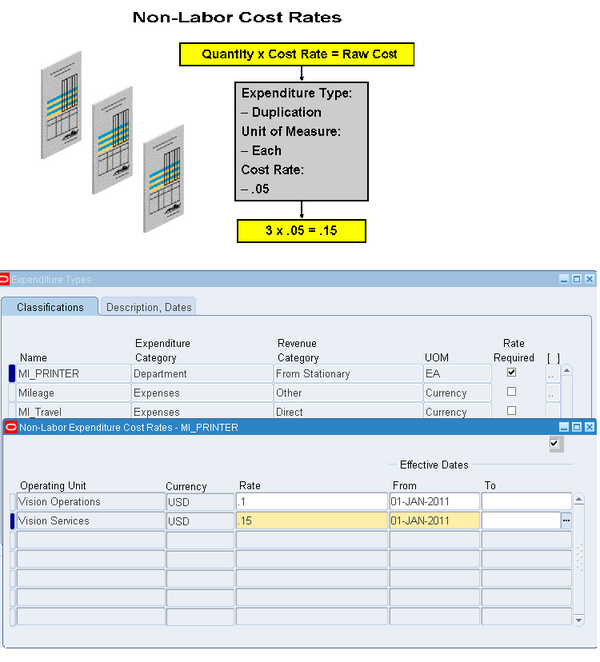
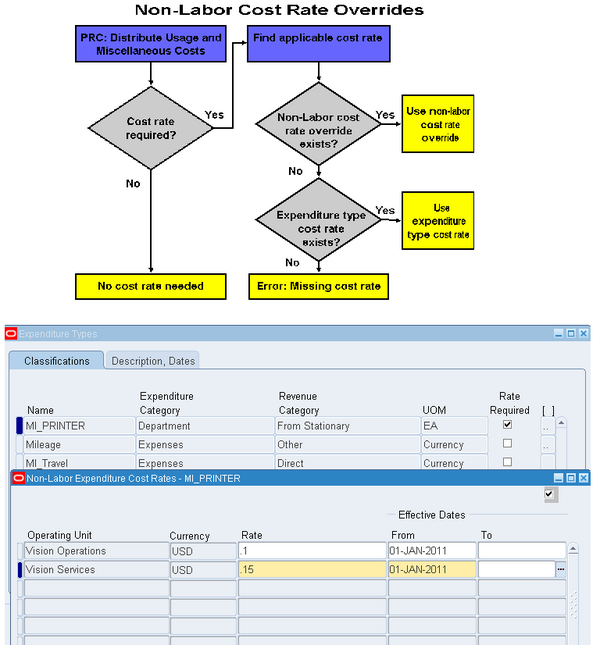
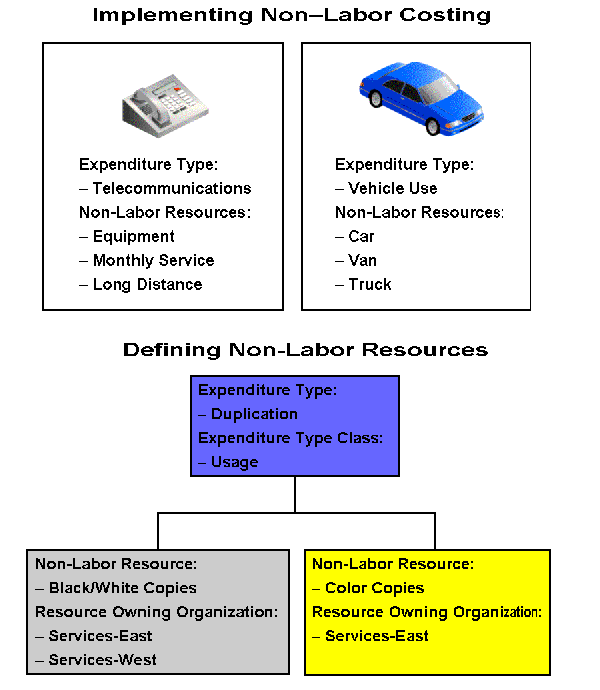 Every usage item you charge to a project must specify the non–labor resource utilized and the non–labor resource organization that owns the resource. When defining your non–labor resources, you can choose only expenditure types with the Usage expenditure type class.