Purchase Order Lines
1. Lines
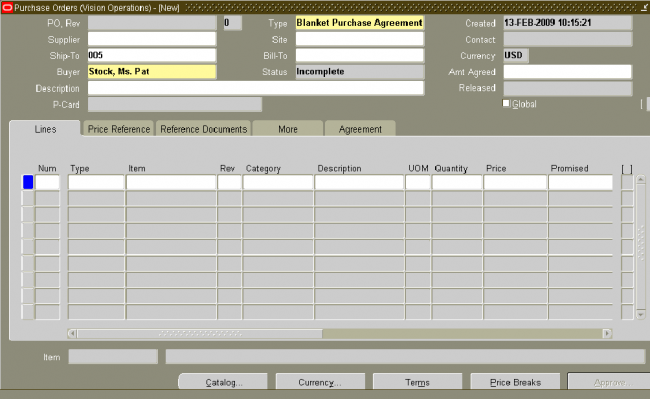
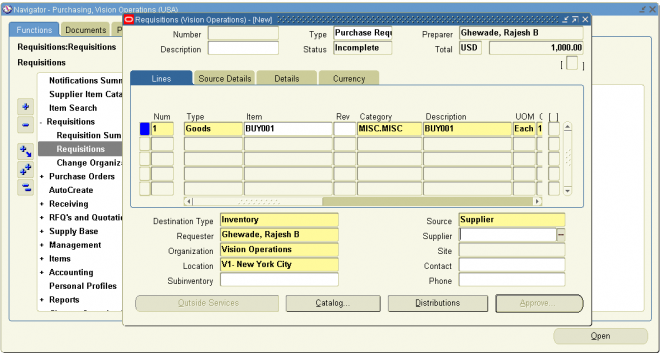
Use the Lines tabbed region in the Purchase Orders window to create purchase order lines.
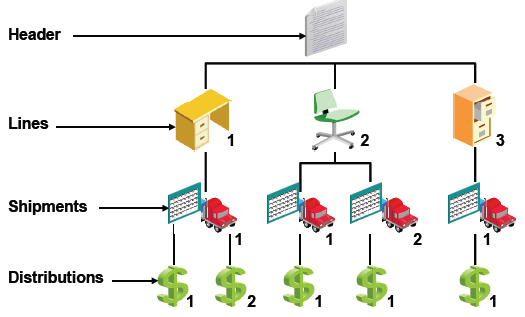
When you save your work, Purchasing creates shipments and distributions if sufficient valid default information is available. Use the Purchase Order Shipments window to review, edit, and create multiple shipment lines for each purchase order line
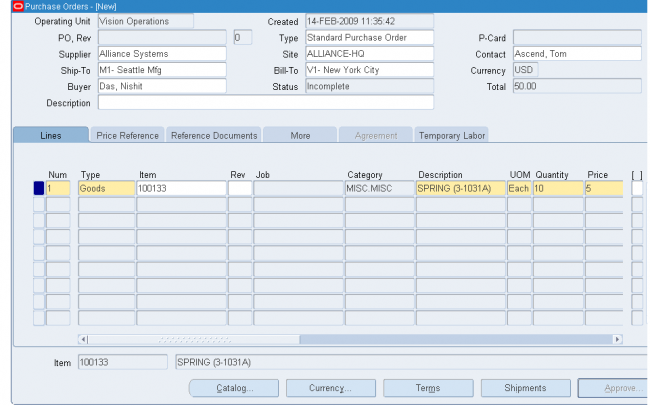
1. Enter the purchase line Number for the purchase order line. If you start a new purchase order line, Purchasing displays the next sequential line number available. You can accept this number or enter any line number that does not already exist.
This number is used for all tabbed regions in the Purchase Orders window.
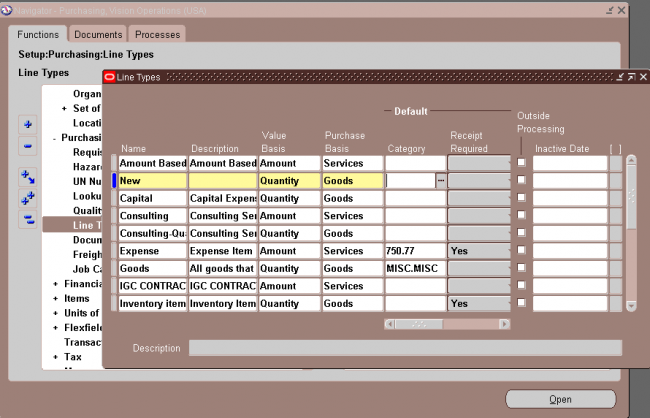
2. Enter the line Type for the item. When you create your purchase order line, you enter a line type as part of your item information. When you enter a line type, Purchasing automatically copies the corresponding defaults. You can change the
line type after you have saved your work, if the change is in the same line type class, but Purchasing won't automatically copy the new defaults. If you change the line type before you save your work, Purchasing automatically copies the new
defaults if the new line type is in a different line type class.
You can enter predefined items for your purchase order line only when you specify a quantity based line type. If Bills of Material and Work in Process are installed and you have defined an outside processing line type, you can enter that type here to purchase outside processing.
To enter lines for services, you can specify a line type that has its basis as amount. If Oracle Services Procurement is implemented, services lines with a rate based line type can be entered or fixed price based line type can be created from the Supplier Item Catalog.
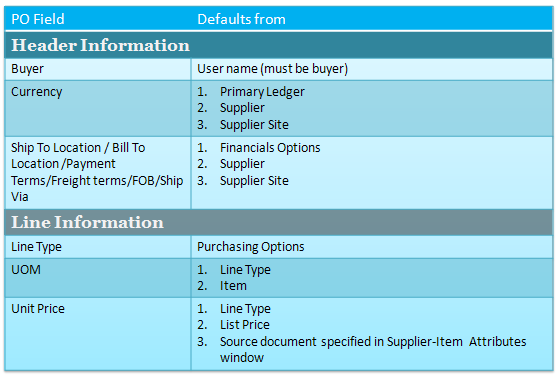
3. Enter the Item you want to purchase. If you enter an item, Purchasing displays the purchasing category, item description, unit of measure, and unit price associated with the item. To create a purchase order line for a one-time item, simply skip the item number field and enter a purchasing category and an item description. If you are purchasing outside processing, you can enter only outside processing items.
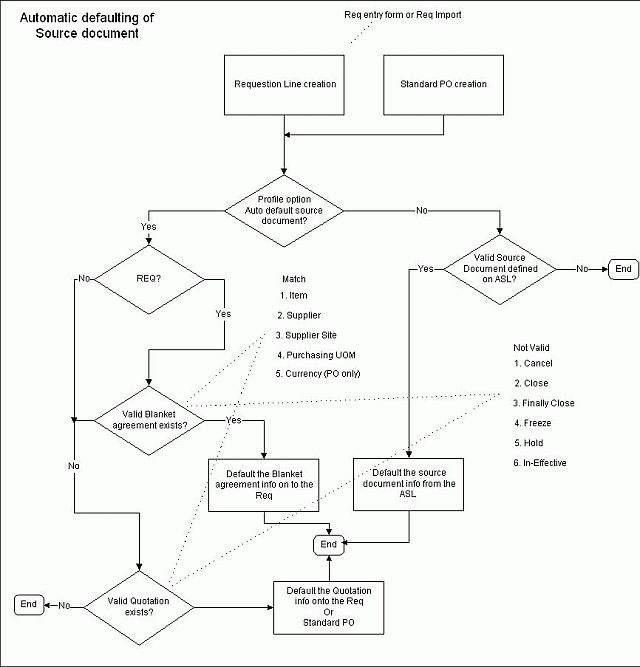
If you enter an item that is under automatic sourcing control the unit price will be displayed and reference information included from the most current agreement available to Oracle Purchasing.Note that you cannot enter an outside processing item in a global agreement, regardless of the item's defining organization.
4. Enter the total Quantity you are ordering on the purchase order line.
5. Enter the UOM of the item. The unit of measure qualifies the quantity you enter on the purchase order line. When you choose a line type, its default unit of measure appears here. When you choose an item number, its unit of measure overrides the line type default. You can change the UOM until the item has been received, billed, or encumbered. If the line is sourced to a quotation or global agreement, you cannot change the UOM after the line has been saved.
6. Enter the unit Price for the item. If you choose an item, the default price is the list price for the item. Otherwise, the default price is from the line type. The Amount field displays the unit price multiplied by the quantity. If you entered an item that is under automatic sourcing control the unit price will be displayed from the most current agreement available to Oracle Purchasing.
Note: If you manually override the defaulted price, Oracle Purchasing does not recalculate the price when pricing related
changes are made to the purchase order
7. Enter the Promised date and time that the supplier promised delivery of the items.
Multiple distributions, Promised date, and Need-By date display as "multiple" at the line level.
8. Enter the Need By date and time when the requester needs the item. If you are using Master Scheduling/MRP, you must provide either a need-by date or a promised-by date for shipments that correspond to purchase order lines with Master Scheduling/MRP planned items. A need-by date is also required for Inventory planned items.
9. Supplier item shows if there is any supplier cross reference item
10. Charge account field shows
Charge A/C in distribution line - In case of standard PO
Blank - In case of BPA
A/C or Multiple - In case of planned purchase order
When planned PO is created the charge A/C in line level shows the charge A/C in distribution level. After we create a release against the PPO with a quantity less than orginial quantity in the PPO the charge A/C in line level changes to Multiple.
2. Price Reference
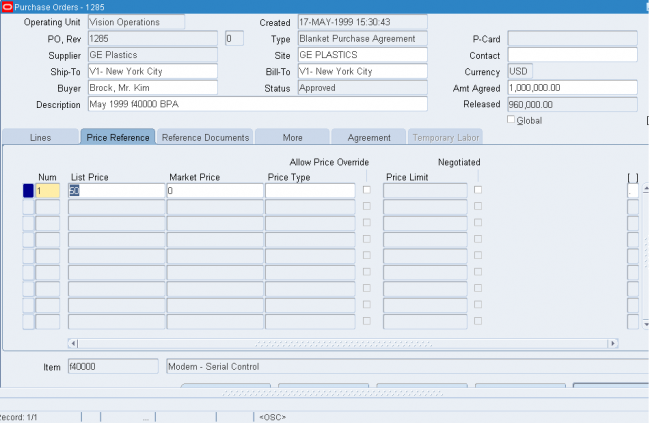
1. Enter the List Price for the item. If you have entered an item, Purchasing displays the list price for the item. You
can accept the default list price or change it. Use this field to help evaluate your buyers. Purchasing uses the list price you enter here in the savings analysis reports.
2. Enter the latest Market Price for the item. If you enter an item, Purchasing displays the market price for the item. Use this field to help evaluate your buyers. Purchasing uses the price you enter here in the savings analysis reports if you do
not provide a value in the List Price field
3. Enter the Price Type from your lookup codes.
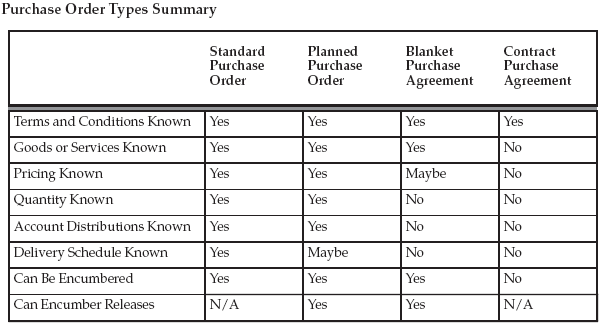
4. For planned purchase orders and blanket purchase agreements only, check Allow Price Override to indicate that the release price can be greater than the price on the purchase agreement line. If you allow a price override, the release price cannot exceed the Price Limit specified on the line. If you do not allow a price override, Purchasing displays on the release the shipment price from the purchase agreement and prevents you from updating it. You cannot enter this field if the line type is amount based.
5. If you allow price override, enter the Price Limit. This is the maximum price per item you allow for the item on this agreement line.
6. Select Negotiated to indicate that the purchase price is negotiated. If the actual price is greater than or equal to the list price, then the field is unchecked as the default. If the actual price is less than the list price, then the field is checked as the default. You can accept the default value or change it.
3. Purchase Order Reference Document
Use the Reference Documents tabbed region in the Purchase Orders window to enter reference document information for purchase order lines.
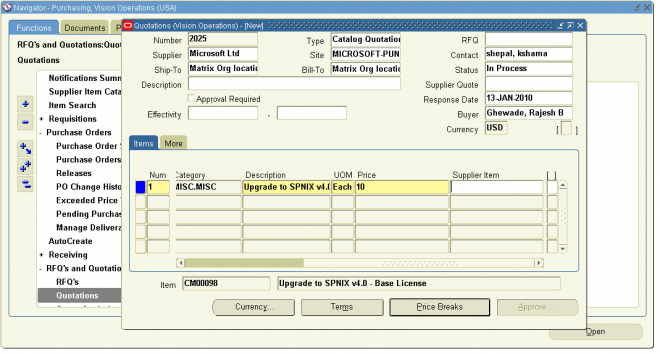
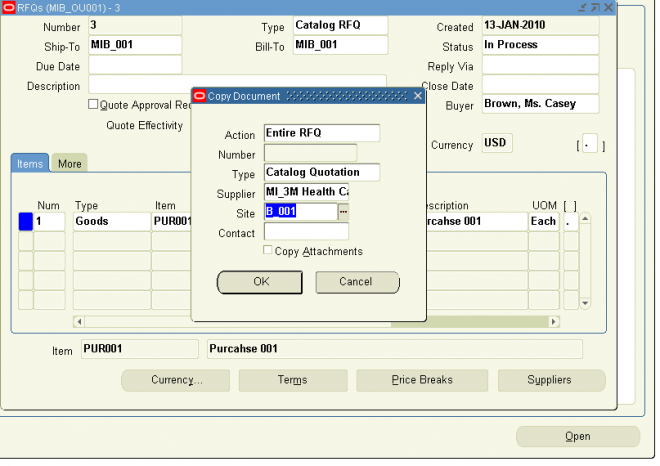
Purchasing lets you reference quotation information on your purchase orders.
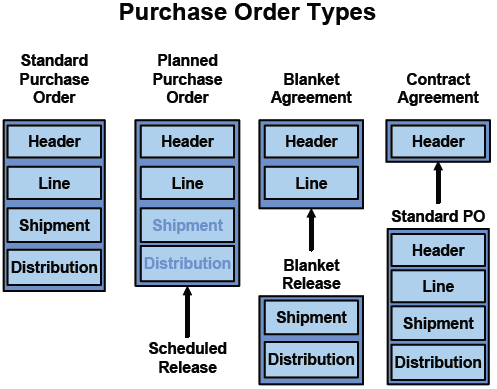
Enter the Contract purchase agreement number. You cannot enter a contract number until you have entered a supplier in the header, and the contract must be for this supplier. The contract you choose must be effective; that is, the current date has to be within the effective date and the expired date of the contract. If you reference a contract purchase agreement on a standard purchase order line, Purchasing adds the total amount of the purchase order line to the total amount of the contract purchase agreement. Purchasing lists only those contracts with the same supplier as the one on your standard purchase order.
If this purchase order references a global agreement then Global will be checked and the Owning Org will display the organization that owns the global agreement.
Important: If you have not yet provided a supplier on your standard purchase order, you cannot choose any contracts for your purchase order lines. If you want to change the supplier on your standard purchase order after you reference a contract on your purchase order lines, you must remove the references to the contract purchase agreement, or you will not be able to approve the purchase order. Purchasing lets you change suppliers only on standard and planned purchase orders with the status Incomplete
4. PO More TAB3
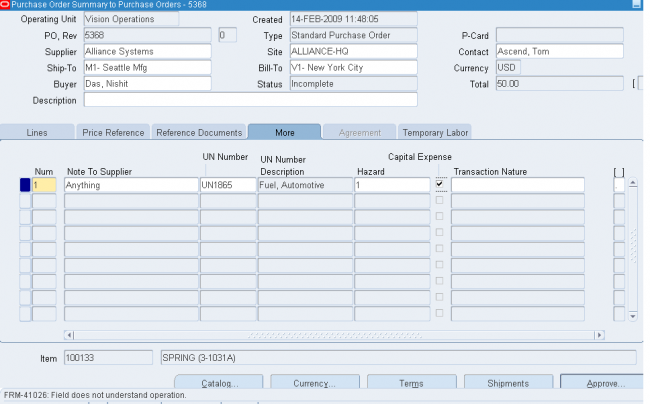
1. Enter a Note to the Supplier for the purchase order header. You can enter up to 240 characters. If you want to enter unlimited notes, use the Attachments feature.
2. Enter the UN identification Number for the item on the purchase order line. The default, if present, is from the item record.
3. Enter the Hazard Class for the item on the purchase order line. If you enter a UN number, Purchasing displays the corresponding hazard class. The default, if present, is from the item record.
4. Select Capital Expense to indicate that the purchase is a capital expenditure.
5. Purchase Agreement Information
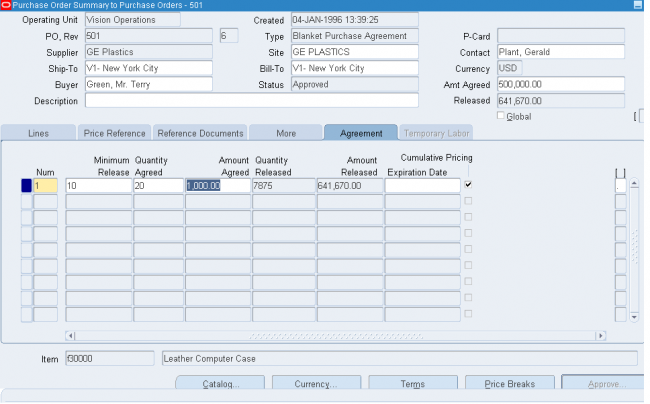
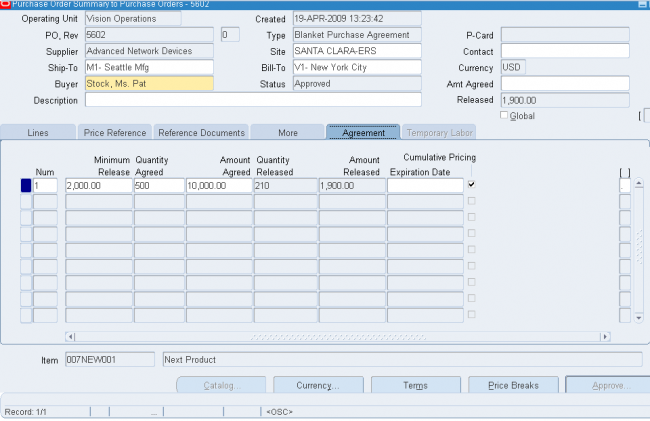
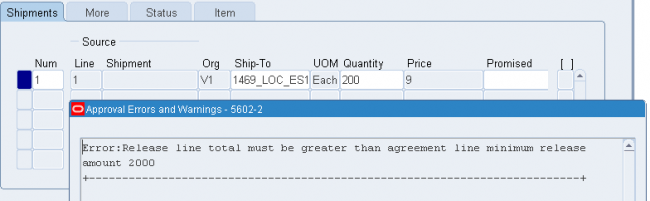
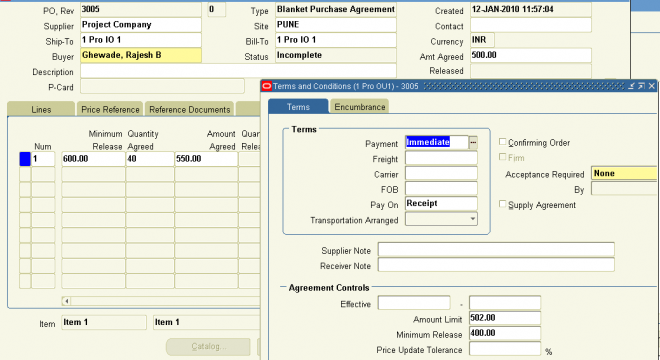
1. In the Agreement tabbed region of the Purchase Orders window (when you've selected a Type of Blanket Purchase Agreement), enter the Minimum Release Amount against this purchase agreement line.
2. Enter the Quantity Agreed. This is printed on your purchase orders. Purchasing does not automatically compute the quantity agreed from the amount agreed. Use the Amount Agreed field to provide agreed amounts.
3. Enter the Amount Agreed. Purchasing does not automatically compute the amount agreed from the quantity agreed.
4. Optionally enter an Expiration Date to prevent ordering of the item after that date.
If the item on the agreement has expired but already exists on an open release, you can still use the release. However, the expired line item will not be used for sourcing, and any future releases you create will not allow using the expired item.
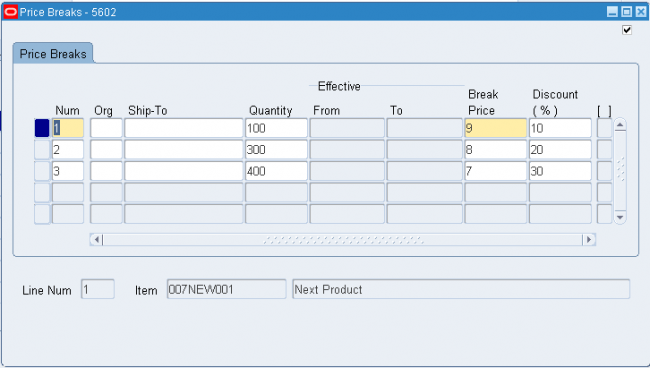
5. Select Cumulative Pricing if you want Purchasing to choose the price break by adding the current release shipment quantity to the total quantity already released against the purchase agreement line. Otherwise, Purchasing chooses the price break by using the individual release shipment quantity.
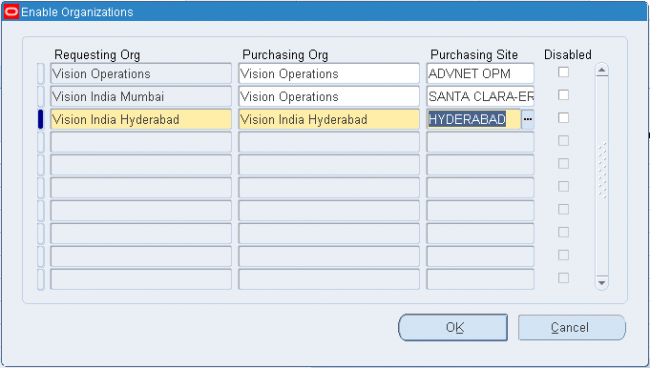
Note: Cumulative Pricing can not be used with global agreements. Organizations can take advantage of negotiations completed with suppliers by other business units. To do this the original blanket purchase agreement or contract purchase
agreement is first created as a global agreement (Global checkbox). Then the agreement is enabled for use in the authorized business units (operating units).

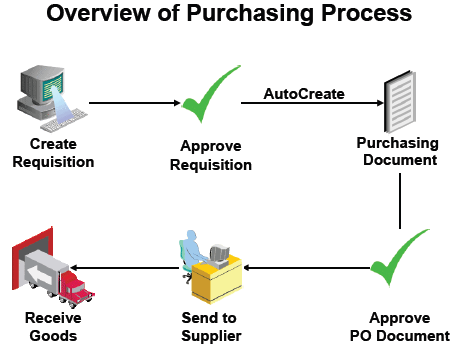
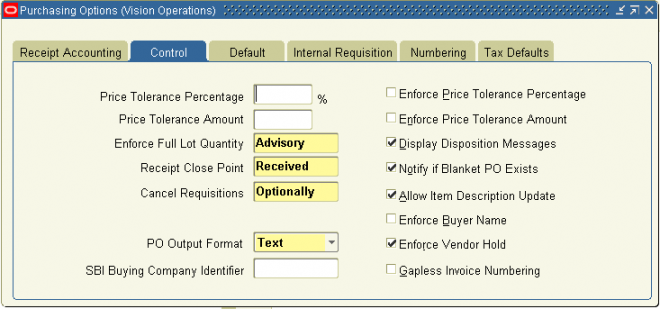
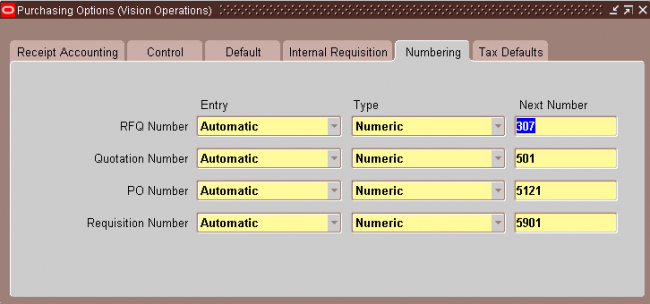
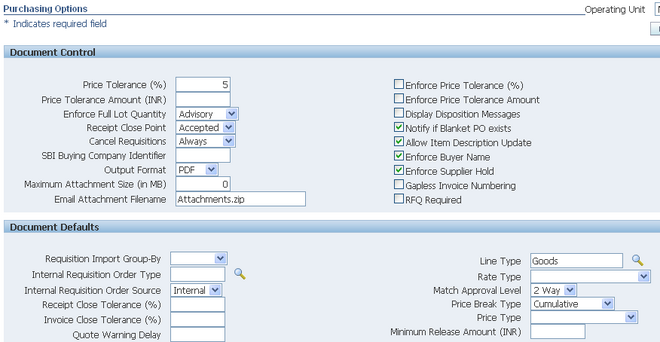
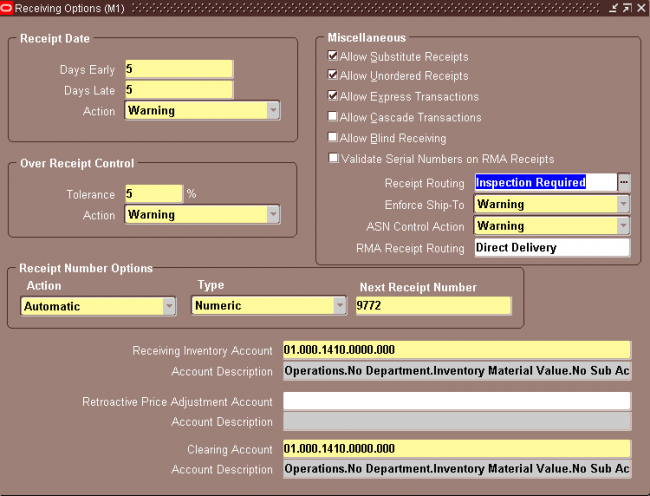





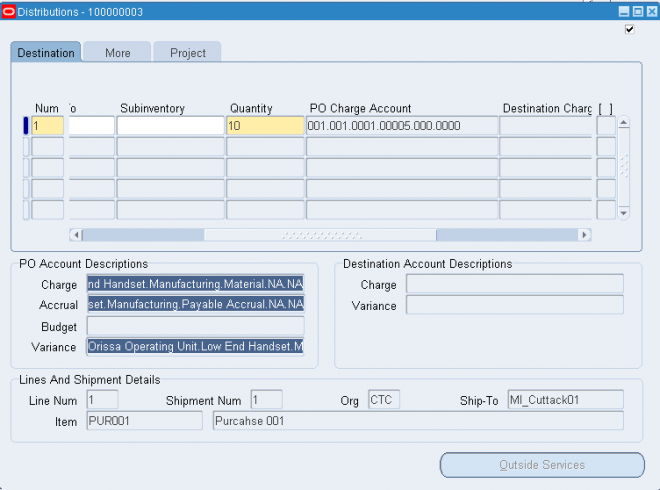
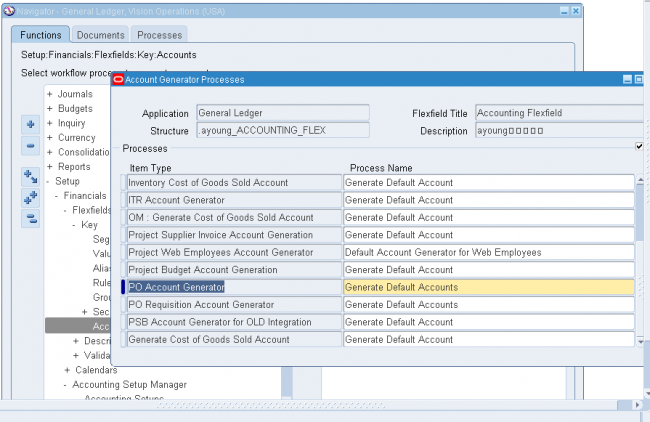
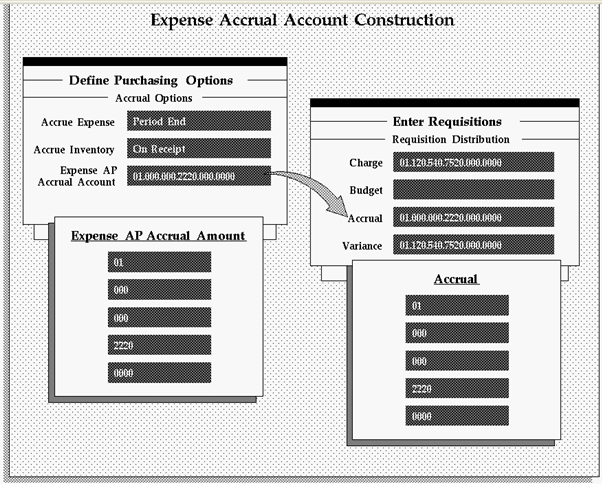
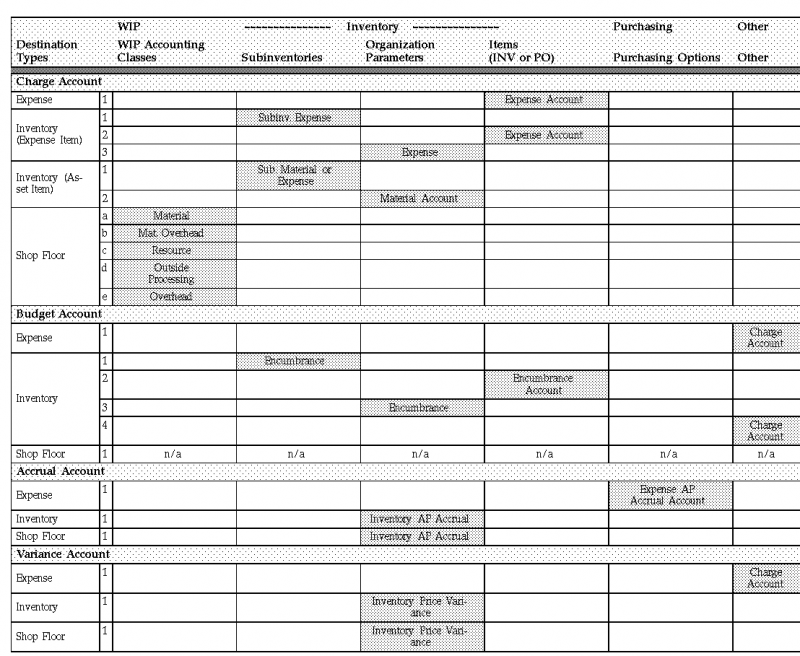
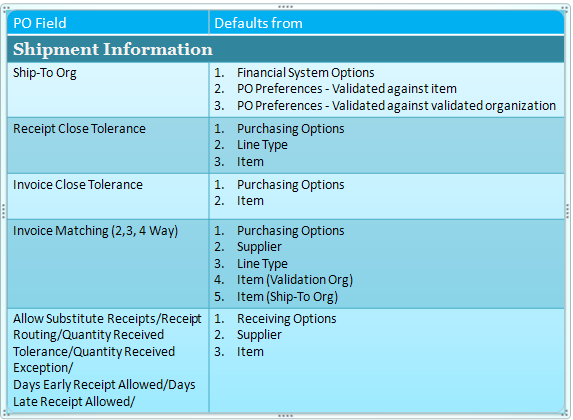

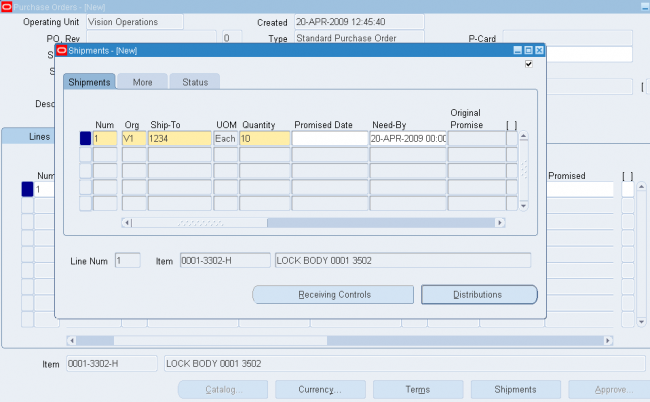
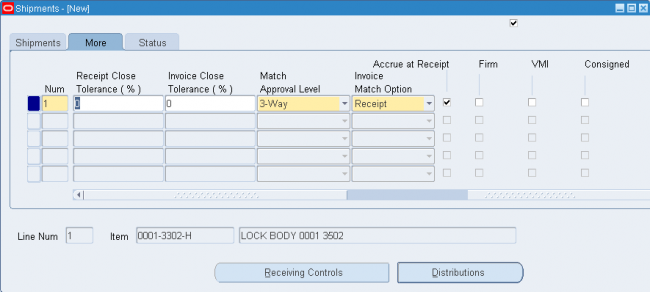
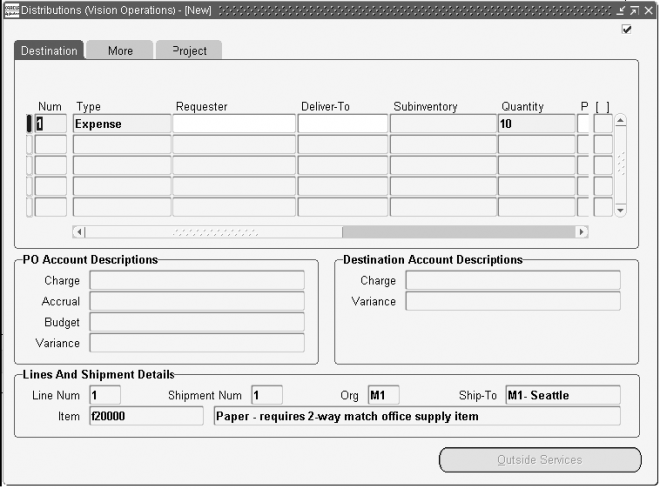
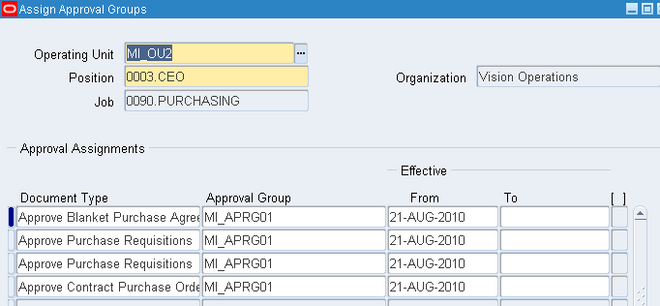



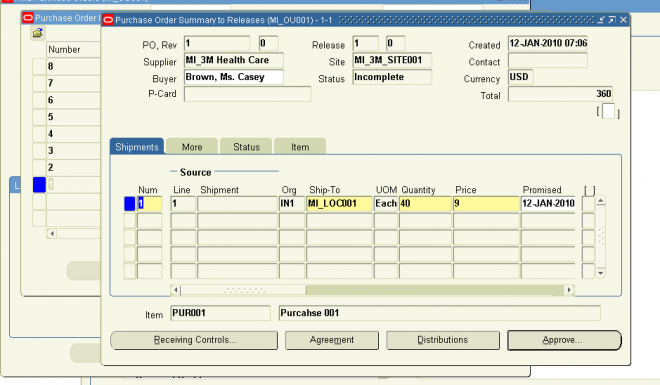
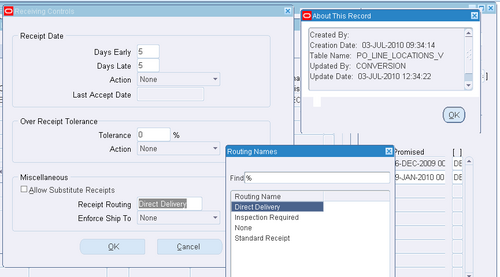 Use the Receiving Controls window to enter receiving control information for purchase orders and releases. Note that controls you enter here apply to specific purchase orders/releases and override the receiving controls you enter in the Receiving Options window. See: Receiving Controls, Options, and Profiles.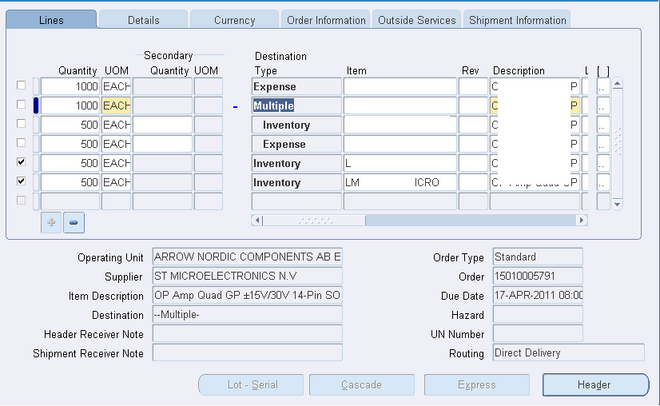
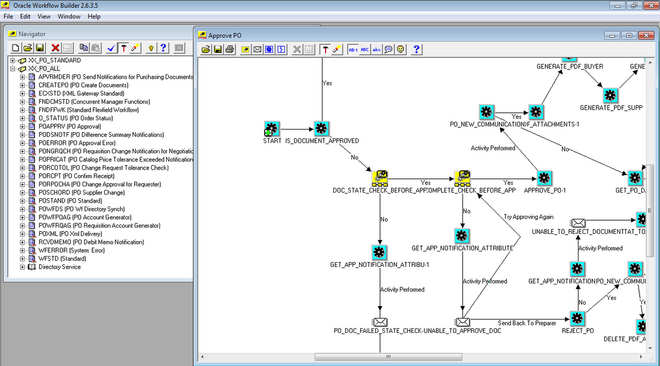
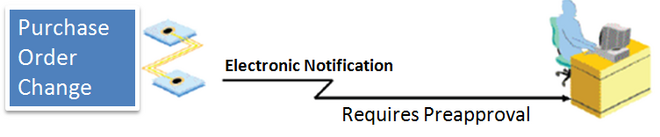
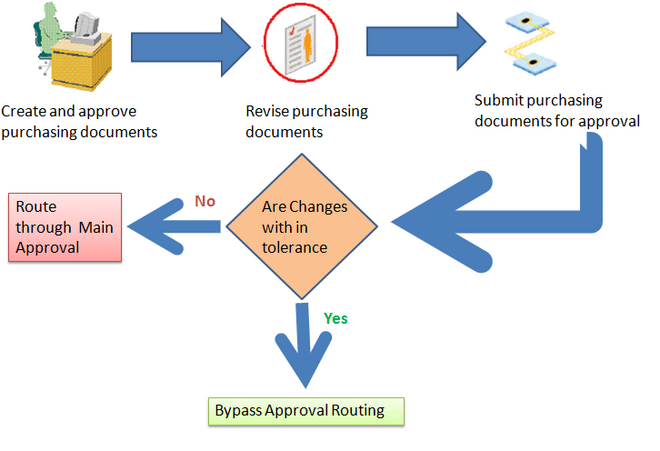
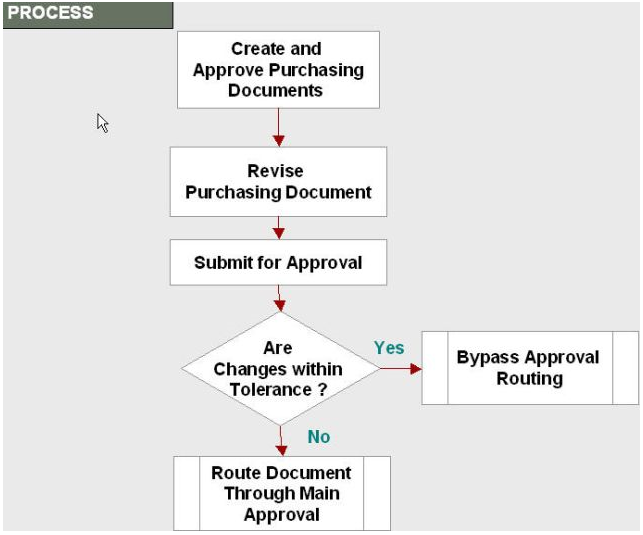 In previous versions, some fields (workflow attributes) existed in the PO Approval Workflow file that would allow a Workflow Administrator and a functional person to work together to setup tolerances.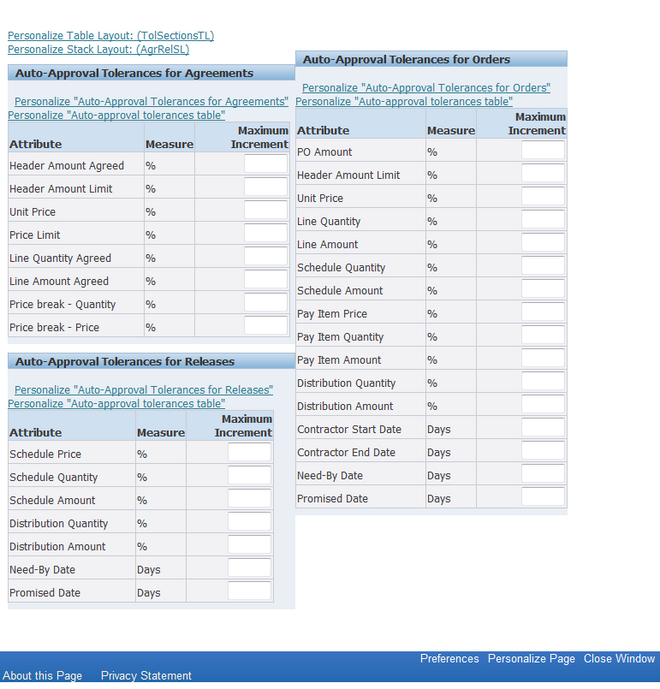
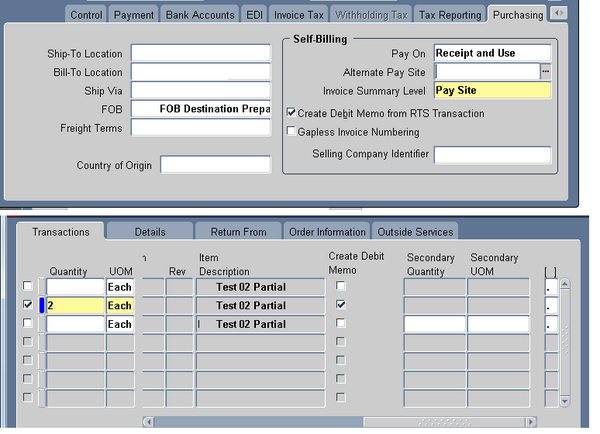
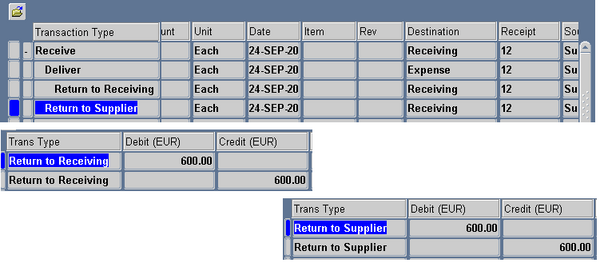 To To auto create debit memo from RTS, enable the supplier site as a Pay Site (or indicate an Alternate Pay Site) and select Create Debit Memo from RTS Transaction in the Supplier Sites window.When you create the return, make sure the Create Debit Memo Option is selected in the Returns window. Once you enable this functionality, a debit memo is created for each return line you enter in the Returns