Defining Activities
Tag:

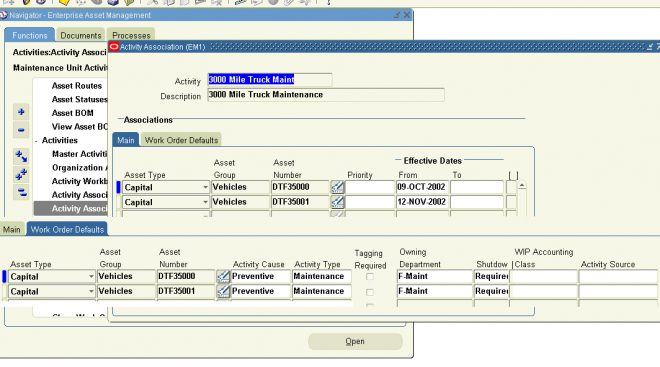
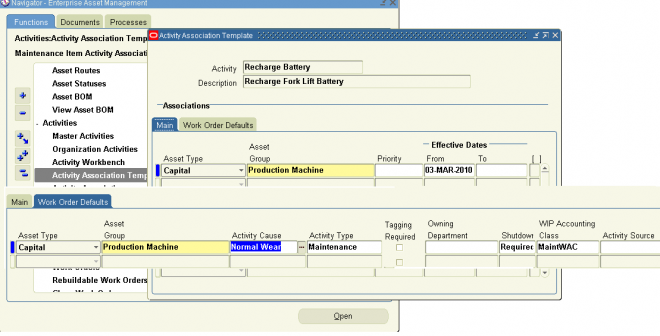
Activities provide you with a standard template of jobs, which can be applied to Work Orders, such as Routine or Preventive Maintenance. After these Activity Templates are created, they can be associated with one or more Asset Numbers or
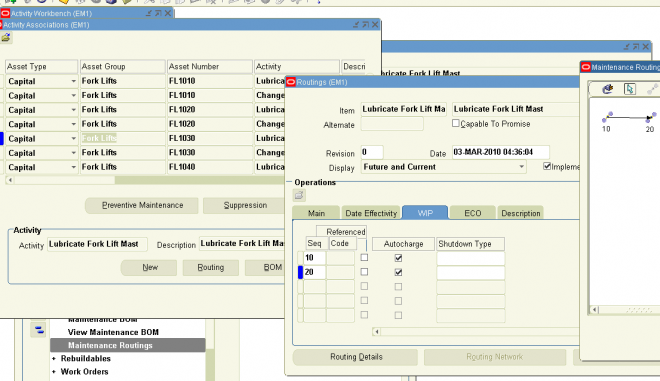
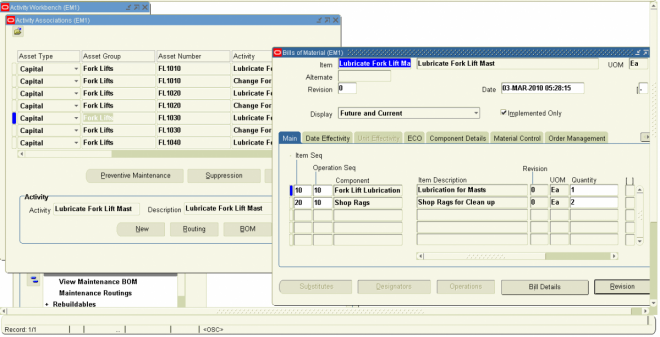
Rebuildables. They also need to be associated to a maintenance BOM and activity routing, containing the materials and resources needed for operations, respectively. When Work Orders are created for assets associated to the Activity, the material and resources associated with the current Activity automatically copy to the Work Orders created.

There are three methods you can use to create an Activity. You can create an Activity within the Master Activity (Master Item) window, create Activities from the Activity Workbench, and create Activities from within a Maintenance Work
Order.

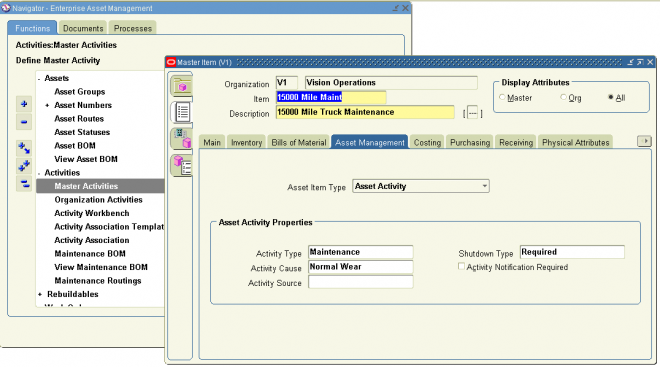
To set up Activities within the Master Activity window:

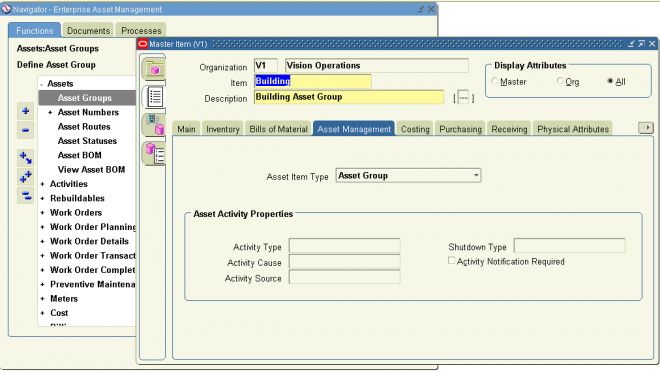
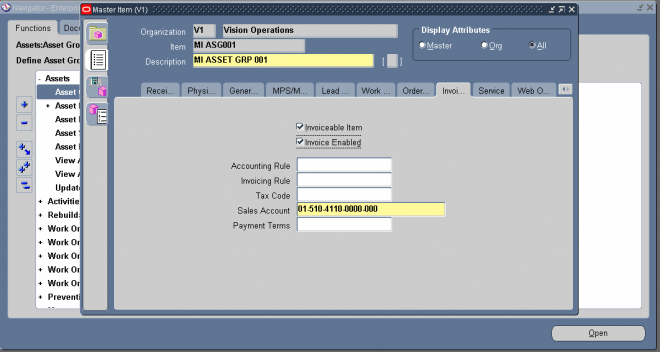
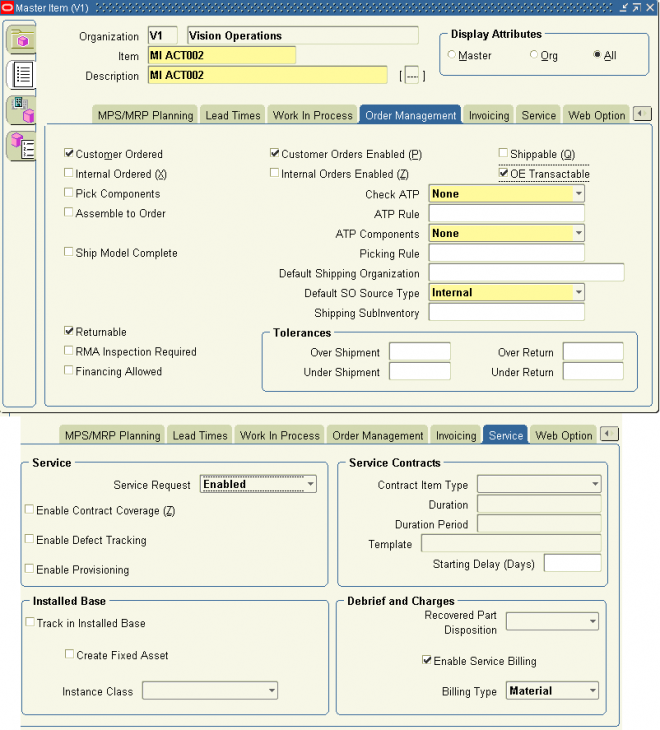
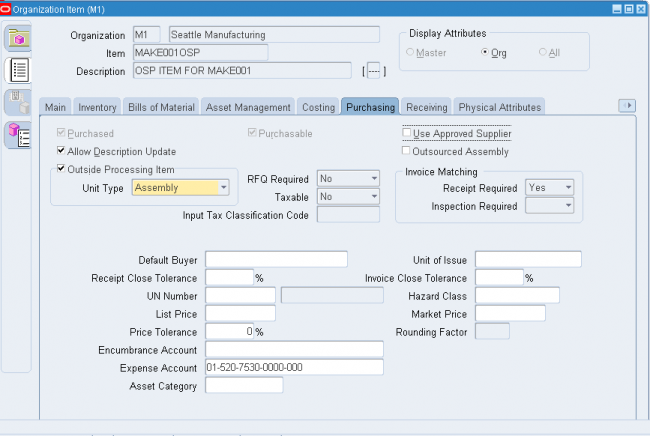
1. Navigate to the Activity (Master Item) window. The Master Item window is used to create Maintained Groups, Activities, and rebuildable.
2. Enter the name of the Activity in the Item field.
3. Enter a Description for this Activity, up to 240 characters.
4. Use the @Activity template to quickly apply attribute values, and to ensure that the appropriate attributes are applied.
a. Select TOOLS from the Tools menu. From the drop down list, select COPY FROM.
b. Select the @Activity template from the list of values.
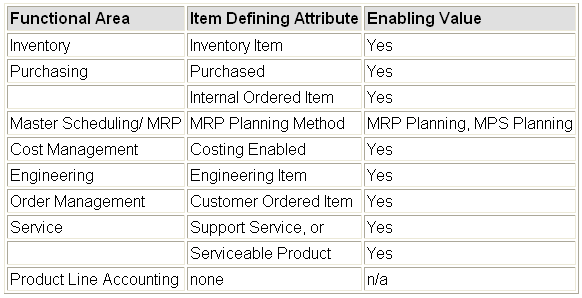
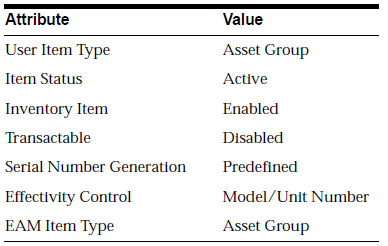
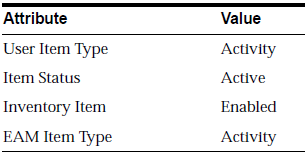
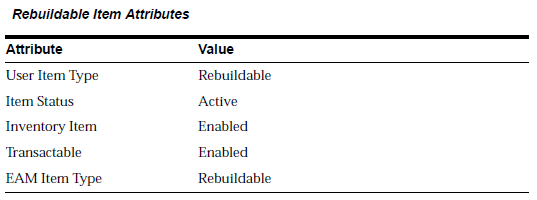
The following table presents the necessary attribute values that are applied automatically to the Activity, when using the template:

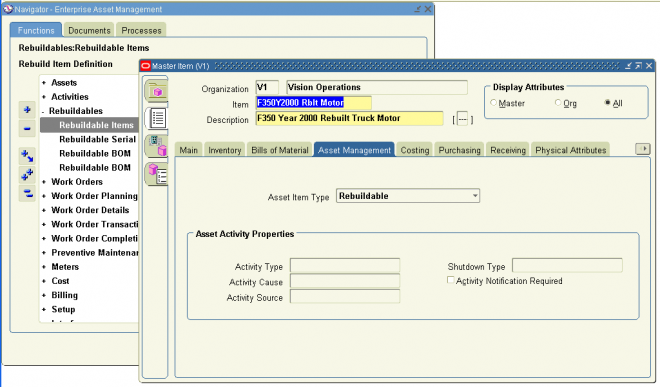
5. Select the Asset Management tabbed region.
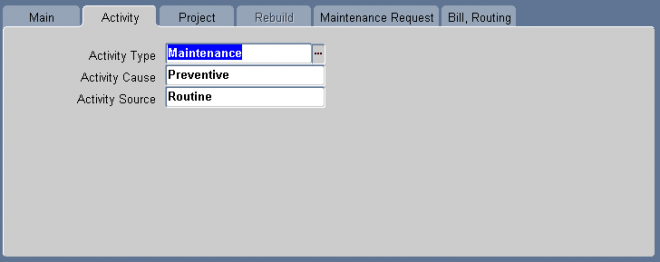
In the Activity Property region, optionally enter an Activity Type to indicate the type of maintenance for this Activity. It is used when defining a Work Order. It should remain generic, and should not describe in detail the job to be done. For
example, Inspection, Overhaul, Lubrication, Repair, Servicing, or Cleaning.
6. Optionally, select an Activity Cause from the list of values, to specify what situation caused this work to be generated. For example, Breakdown, Vandalism, Normal Wear, or Settings.
7. Optionally, select an Activity Source from the list of values. Activity Source codes are reasons activities need to be executed. For example, Warranty Compliance, OSHA Compliance, or Military Specification Requirements.
8. Optionally, select a Shutdown Type from the list of values. This indicates whether a shutdown is necessary to perform this maintenance activity. For example Required, and Not Required. This field is informational only.
9. Optionally, select the Activity Notification Required field to indicate whether the asset requiring work is mobile, and needs to be brought into the shop for repairs. This field is for information only.
10. Optionally, select the paperclip Attachments icon to attach relevant documents, such as drawings, standard procedures, and reference guides, to this Activity. You can attach file, URL, and text attachments.
11. Save your work. After saving your work, this Activity can be associated with an asset

To set up Activities using the Activity Workbench:

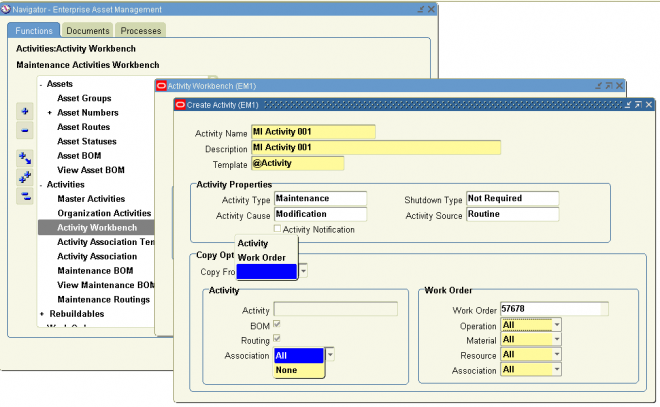
Navigate to the Activity Workbench window.  Choose Launch and to create an Activity, choose New.
1.1 Enter an Activity Name.
1.2. Enter an Activity Description.
1.3 Choose an activity Template from the list of values. This will automatically bring in the properties associated with an Activity. The @Activity template is created for you, however you can create your own Activity Templates, as well.

Activity Properties
2.1 Within the Activity Properties region, optionally select an Activity Type. The value in this field will default from the Template properties above.

2.2 Within the Activity Properties region, optionally select an Shutdown Type. The value in this field will default from the Template properties above. This field is informational only until a future release.

2.3 Within the Activity Properties region, optionally select an Activity Cause. The value in this field will default from the Template properties above.

2.4 Within the Activity Properties region, optionally select an Activity Source. The value in this field will default from the Template properties above.

2.5 The Activity Notification check box is informational only until a future release.

Copy Option
3.1 Within the Copy Options region, optionally select the entity to copy information from. Valid values are Activity and Work Order. If you select Activity, the values within the Activity region are relevant, and the values within the Work Order region are irrelevant. If you select Work Order, the values within the Work Order region are relevant, and the values within the Activity region are irrelevant.

3.2 Within the Activity region, if Activity is populated in the Copy From field, optionally select an Activity name.

3.3.1 Within the Activity region, if Activity is populated in the Copy From field, optionally select the BOM check box to indicate that the Maintenance Bill of Material, associated with the current Activity within the Activity region, will copy to the new Activity Name.
For example, in the screen shot above, the Maintenance Bill of Material associated with the 3000 Mile Truck Maint will copy to Oil Change.

3.3.2 Within the Activity region, if Activity is populated in the Copy From field, optionally select the Routing check box to indicate that routings, associated with the current Activity within the Activity region, will copy to the new Activity Name.
For example, in the screen shot above, routings associated with the 3000 Mile Truck Maint will copy to Oil Change.

3.3.3 Within the Activity region, if Activity is populated in the Copy From field, select All or None from the Association list of values.
■ All: All Asset and Rebuildable associations, associated with the current Activity within the Activity region, will copy to the new Activity.
■ None: No Asset and Rebuildable associations, associated with the current Activity within the Activity region, will copy to the new Activity.

3.4.1 Within the Work Order region, if Work Order is populated in the Copy From field, select an existing maintenance Work Order from the list of values.

3.4.2 Within the Work Order region, if Work Order is populated in the Copy From field, select All or None from the Operation list of values.
■ All: All operations associated with the current Work Order, populated in the Work Order field, will copy to the new Activity.
■ None: No operations associated with the current Work Order, populated in the Work Order field, will copy to the new Activity

3.4.3 Within the Work Order region, if Work Order is populated in the Copy From field, select All, Issued, or None from the Material list of values.
■ All: All material associated with the current Work Order, populated in the Work Order field, will copy to the new Activity.
■ Issued: Only material issued to the current Work Order, populated in the Work Order field, will copy to the new Activity.
■ None: No material associated with the current Work Order, populated in the Work Order field, will copy to the new Activity.

2.4.4 Within the Work Order region, if Work Order is populated in the Copy From field, select All, Issued, or None from the Resource list of values.
■ All: All resources associated with the current Work Order will copy to the new Activity.
■ Issued: Only resources issued to the current Work Order will copy to the new Activity.
■ None: No resources associated with the current Work Order will copy to the new Activity.

21. Within the Work Order region, if Work Order is populated in the Copy From field, select None, Current, or All from the Association list of values.
■ None: No Assets and Rebuildables, associated with the current Work Order, will associate with the new Activity.
■ Current: An Asset and/or Rebuildable, associated with the current Work Order, will associate with the new Activity.
■ All: All Assets and/or Rebuildables, associated with the current Work Order’s Activity, will associate with the new Activity.

22. Save your work. After saving, the new Activity is automatically assigned to the current organization.

Comments

Post new comment

The content of this field is kept private and will not be shown publicly.
All Rights Reserved. Copyright 2008-11 OracleUG.com.